
Table Enhancer for Confluence lets you enhance any Confluence table with row numbers, initial sorting, a total line, and fixed rows/columns.
Try it in 60 seconds
Instructions
-
Add a Table Enhancer macro to your page.

-
Insert a table containing your data into the macro body.
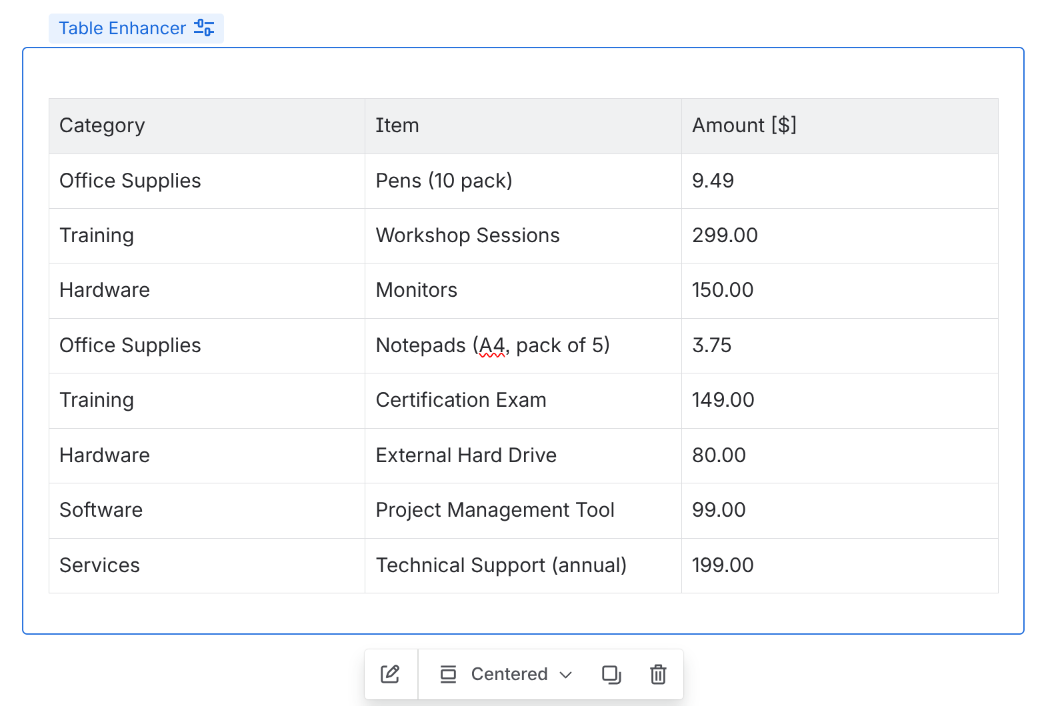
-
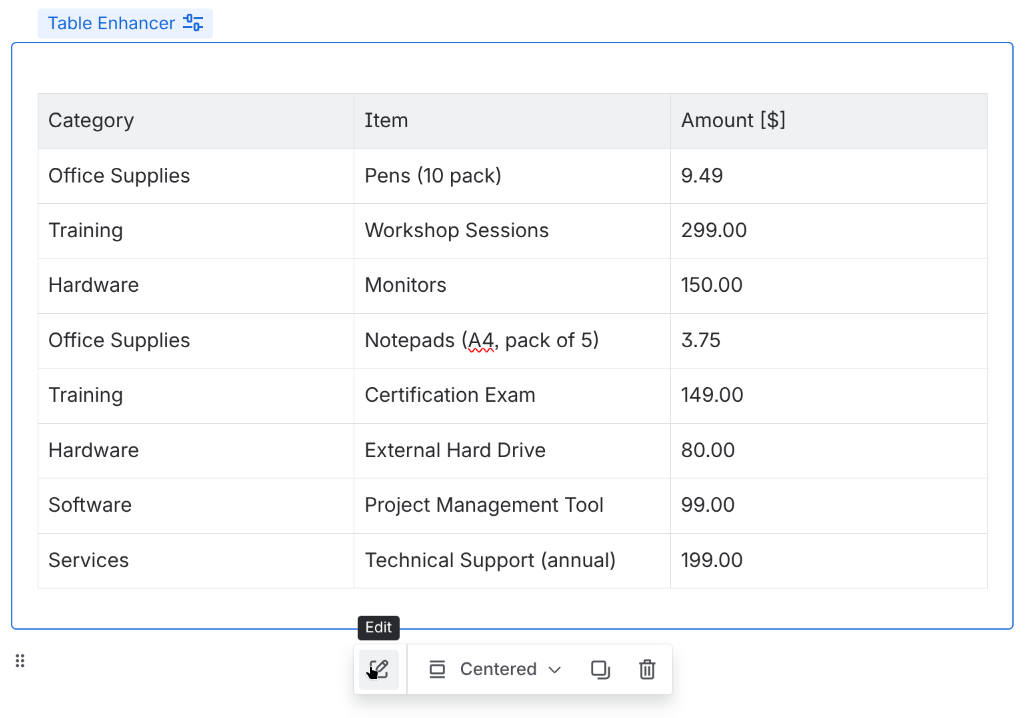
Click on the Table Enhancer macro to open the toolbar. Select “Edit“ to open the Table Enhancer configuration menu.
-
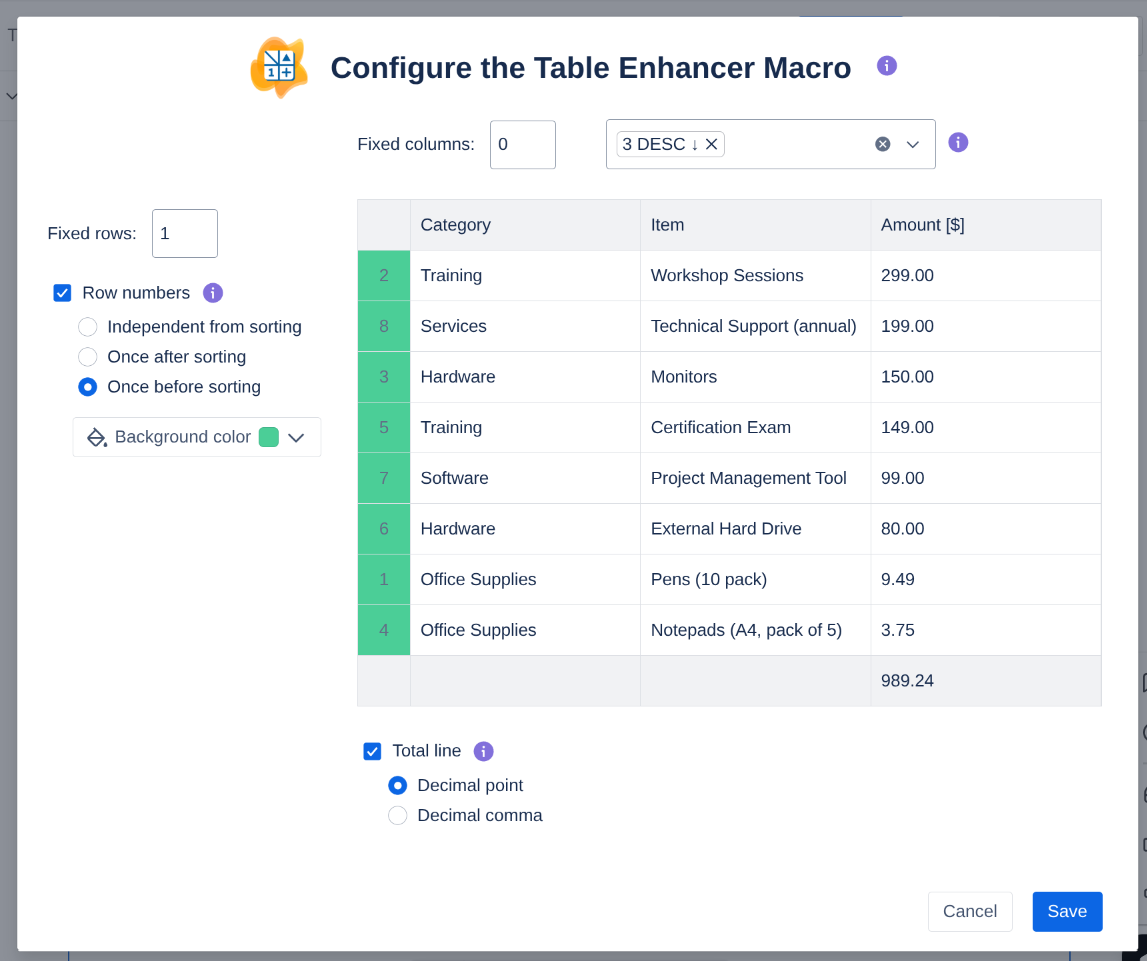
Configure how you want your table to be enhanced. The configuration menu shows a preview of the enhanced table so that you can test your changes directly. A detailed list of all the configuration options can be found here.
-
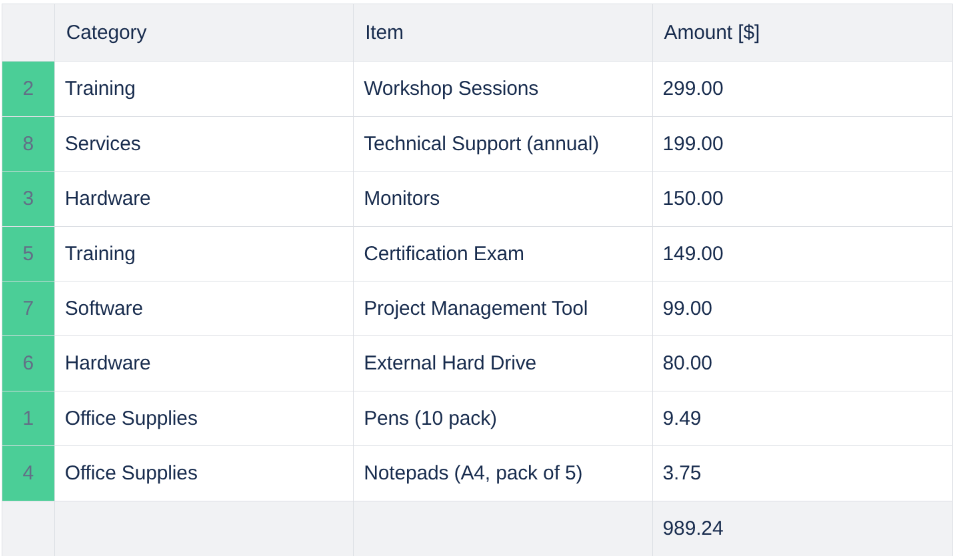
Save the configuration and update the page.
-
Congratulations! 🎉 You have successfully created your first Table Enhancer macro.
Pick the feature that matches what you need most — a preview of the enhanced table is shown in the configuration panel, so you can fine-tune the settings before saving.
Need more help?
Our https://tngtech.atlassian.net/wiki/x/fwAH1Q is aimed to help you with common pitfalls.
You can also reach out directly to the team by submitting a request via our Service Desk.