
Follow these steps to install Custom Content for Jira:
-
In your browser, log in to https://admin.atlassian.com as an administrator of your site.
-
Navigate to the Connected apps page in the site settings for your site. Atlassian provides instructions for navigating to this page: https://support.atlassian.com/security-and-access-policies/docs/manage-your-users-third-party-apps/.
-
Click on Explore apps in the top right. The Marketplace page will open in a new tab.

-
On the Marketplace landing page, type Custom Content for Jira into the search bar to find the app.

-
Select the app tile to load the app details page.
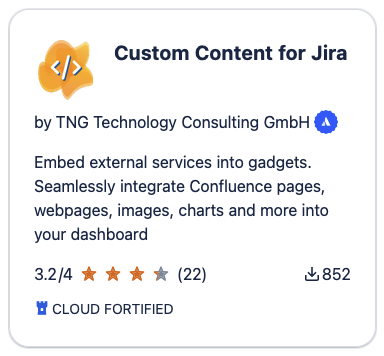
-
Select Try it Free in the top right to install the app.

-
Once the app is installed, you'll be notified by a success message.
-
Optional: Connect the app to Confluence to allow embedding Confluence pages. In the Connected apps admin page, search for Custom Content for Jira, then click View app details, go to the Connections tab, and click the Connect button for Confluence.

-
Begin using the app. Enjoy!
Note: Only admins can install apps, but if you aren’t an admin, you can select Try It Free on the Marketplace page for Custom Content for Jira and then request the app by selecting Submit Request.