
Global Templates vs. Project Templates
You can use global or project templates to print your issues. Managing and accessing the templates requires different permissions.
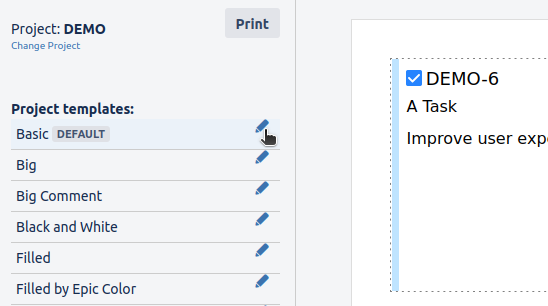
|
|
Global Templates |
Project Templates |
|---|---|---|
|
Availability |
|
|
|
Administration |
|
|
|
Access |
|
|
Grant Project Admins Editing Rights for Project Templates
By default, Jira project admins are not allowed to edit Project Templates of Issue Printer. Since the template editor allows raw HTML editing, grant this permission only to trusted project admins. Jira administrators can enable Project Templates as follows:
-
Go to Global administration → Manage apps → Issue Printer for Jira → Global settings
-
Turn on the toggle Enable template access for Jira project admins
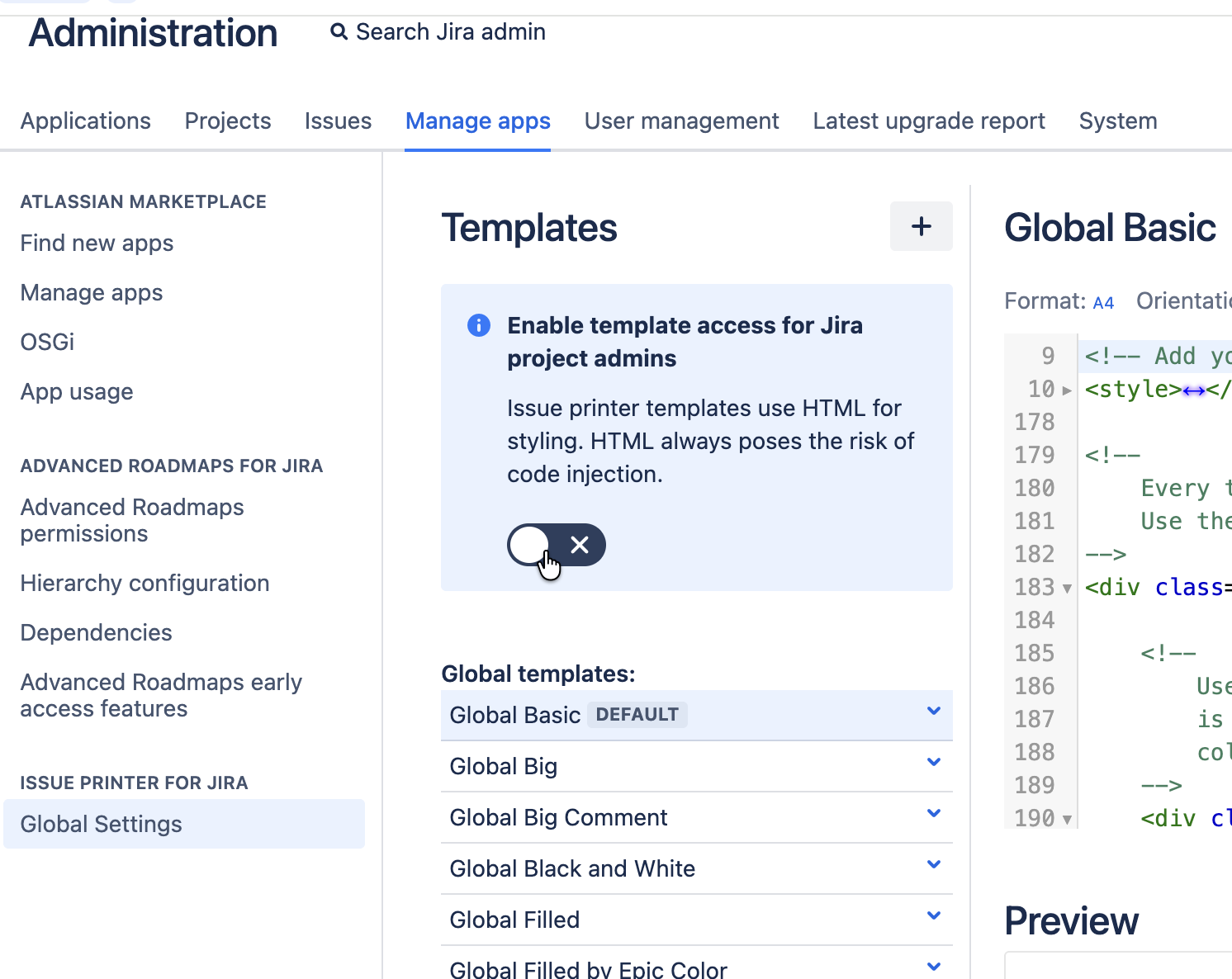
Allow Project Admins to edit templates
Create a new Template
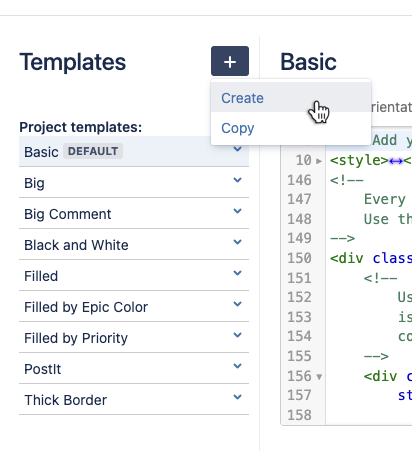
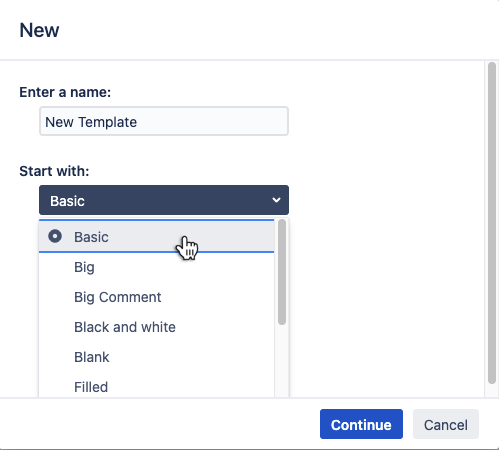
You can create new templates by clicking the + button and then select Create. Please enter a name and select a design to start with.
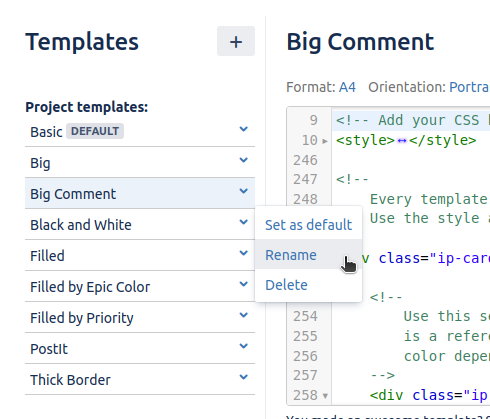
Rename a Template
You may rename your template at any time. However, you cannot choose a name from an already existing template.
Copy a Template
You can copy templates by clicking the + button and then select Copy. After selecting a source project (this can also be the same project) you can select one or more templates to copy. If you select just one template to copy you may also enter a new name for the template. Otherwise, the template name is simply copied without any change.
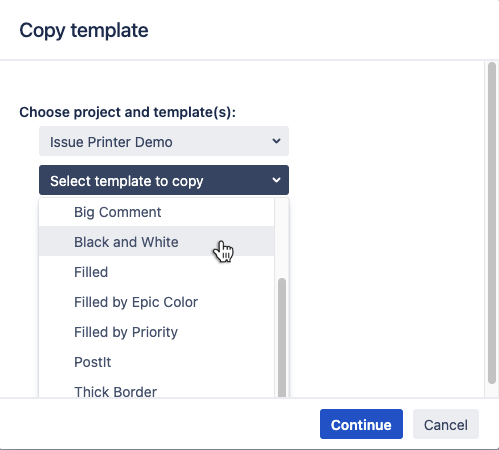
If you have already a template with the same name you will be asked to overwrite the existing template(s). To prevent your templates from being overwritten, rename or copy your templates first.
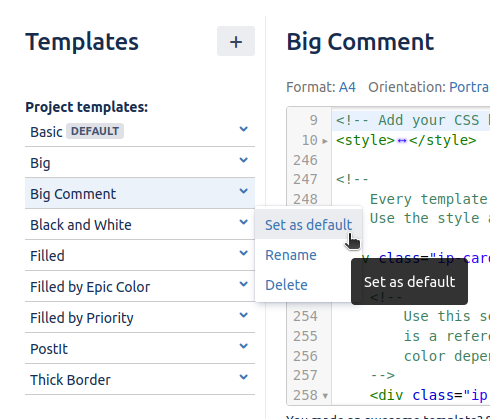
Set a Default Template
You can set one template as the default template for the project. The default template will be selected first when printing your issues. You can always change the template on the preview page.
Delete a Template
You may also delete a template.
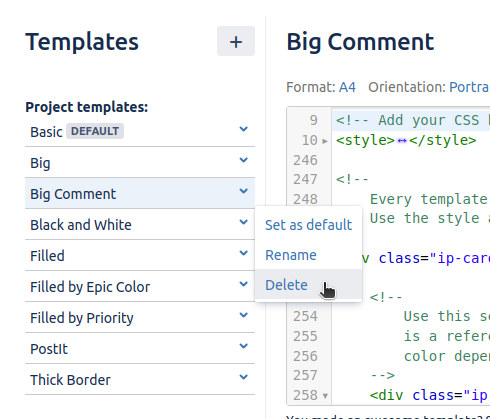
There is no trash so be careful. A deleted template cannot be recovered.