
1. “Migration failed” status in the Migration Assistant
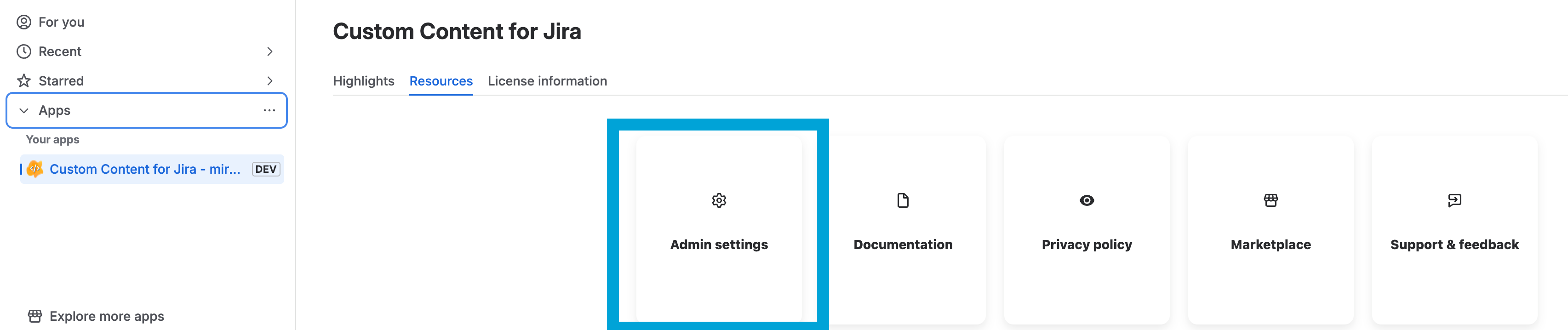
The Migration Assistant of Custom Content for Jira is a UI for Jira Cloud administrators to check the success or failure of the app migration. It can be found in “Apps” → “Custom Content for Jira” → “Resources” → “Admin Settings” → “Migration Assistant”.
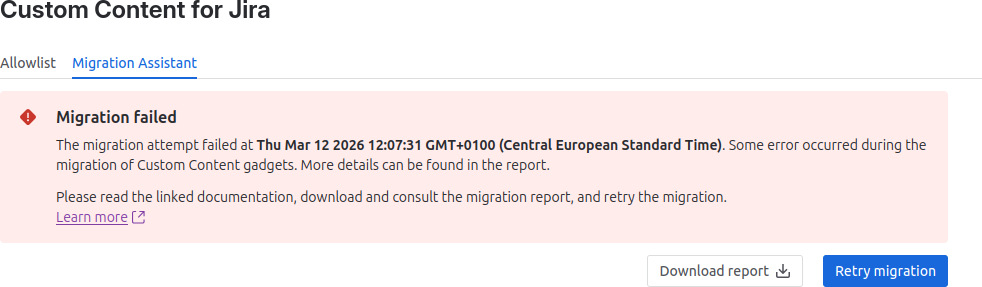
An error could for example occur if a migrated dashboard is deleted before the gadgets have been migrated or if network problems prevent the migration process from setting properties of a Custom Content gadget.
Basics of the app migration
The app migration consists of two steps. In the first step the app data is communicated from the Jira Data Center instance to the Jira Cloud instance. In the second step the app data is used to create the Custom Content gadgets on the migrated dashboards.
After the first step is concluded, the “App migration process” shows up as “COMPLETE” in the Jira Data Center instance, even if the second step is still ongoing on Jira Cloud.
If the second step or part of the second step fails, the migration process tries to write the app data into the Forge Storage of the Cloud instance. The data can then be used to retry the parts of the second step that have failed. The current state of the second step can be seen in the Migration Assistant.
Migration report
The migration report is a human readable description of the parts of the app migration that have failed during the second step.
“Retry” button
The retry button retries exactly the parts of the second steps that are listed in the migration report as failed. Clicking the retry button should not result in duplicates or the property of gadgets that have already been successfully migrated being overwritten.
New migration
When a new migration is triggered from Jira Data Center, all the temporary data from the last migration including the retry data is deleted.
Possible root causes for a “Migration failed” status
If the the migration fails for the gadgets on one or multiple dashboards, you can do the following steps to check the most probable root causes.
-
Get the id of the affected dashboard from the migration report.
-
Check if the dashboard is still there and has not been deleted.
-
Check that the permissions for the dashboard are valid.
The most likely root causes are as follows.
Dashboard has been deleted
A dashboard and the gadgets on the dashboard are not migrated simultaneously. In fact there can be multiple minutes in between. The migration of app data including the app data of Custom Content for Jira is usually the last step of a migration from Data Center to Cloud. If a dashboard is deleted before the Custom Content gadgets are migrated, the migration fails and the Migration assistant shows “Migration failed”.
Resolution
The migration report gives you the IDs of the dashboards for which the migration failed. Check if the dashboard with a given ID is still active or if it has been moved to the trash. Administrators can find dashboards that have been moved to the trash on the “Manage dashboards” page in the Jira admin settings. You find it in “Settings” → “System“ → “Dashboards”.
See also next section on “Invisible dashboards”.
If the dashboard has been restored from the trash, the retry of the migration should succeed.
Invalid dashboard permissions
Sometimes dashboards have invalid permissions after being migrated. This can happen if an entity that has a permission for the dashboard, e.g. an user or a project, is not migrated. See the screenshot below for an example, in which view permissions for the dashboard are assigned to “Unknown project”. In this case it was a project that existed on the Data Center instance but wasn’t migrated to Cloud.
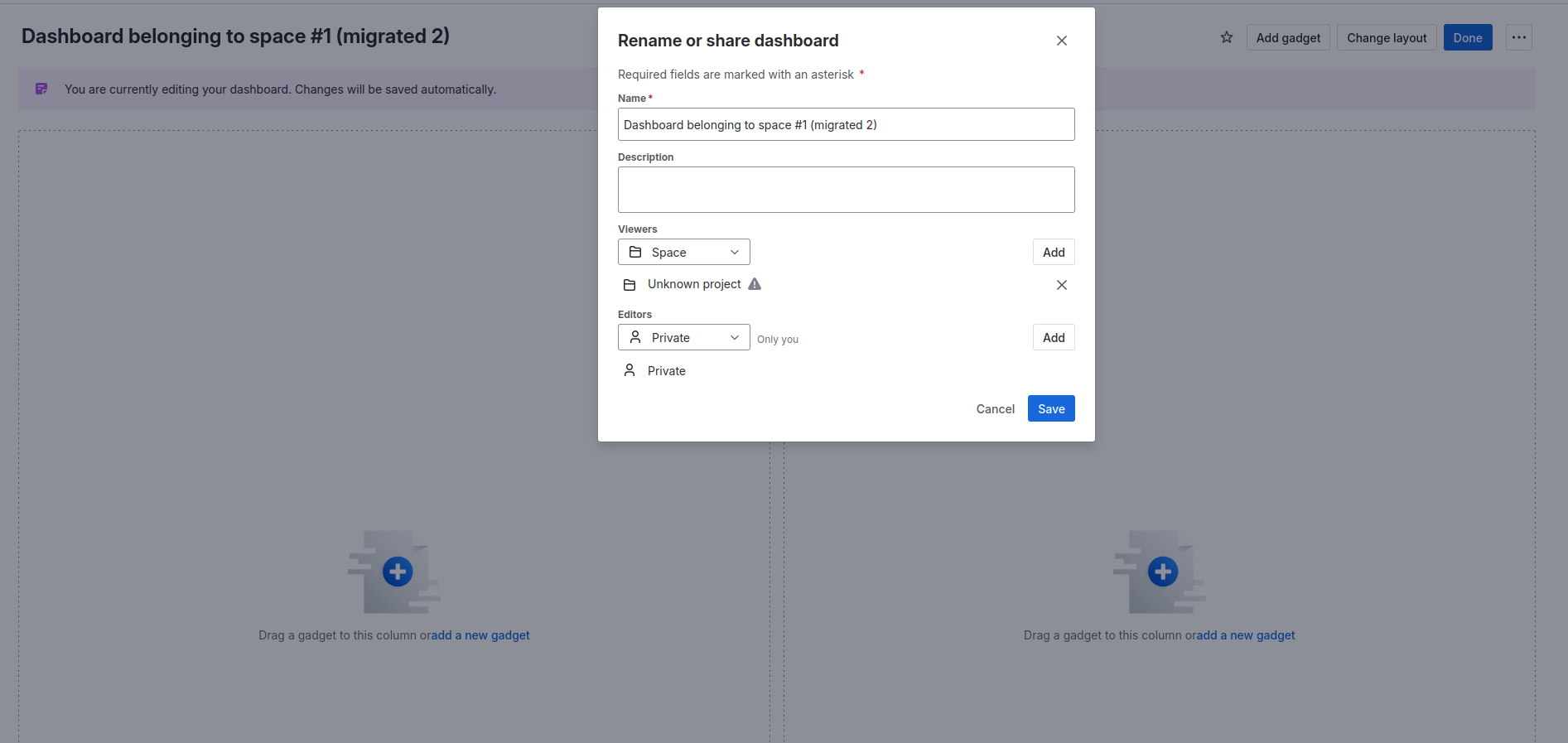
Migrating gadgets of a dashboard that has invalid permissions will fail. It does not matter if these are invalid Editors or invalid Viewers.
Resolution
The migration report gives you the ID of the dashboards for which the migration failed. The easiest way to resolve this is to remove the invalid permissions from the affected dashboards. This can be done by editing the dashboard, clicking on “Rename or share”, and then saving with the invalid permissions having been removed.
Afterwards, the retry of the migration should work. However, you might want to look into the cause of the invalid permissions since they might be an indicator for more general problems with the migration.
2. Invisible dashboards
Sometimes user notice that dashboards are not visible after a migration. The most common reason is that a user and/or their permissions were not mapped correctly from Data Center to Cloud. Hence, the user lacks the permission to see the migrated dashboard on the Cloud instance.
If you cannot see the migrated dashboards, an administrator can check if they have been migrated and adjust the permissions. To check that open “Settings” → “System” from the top right corner
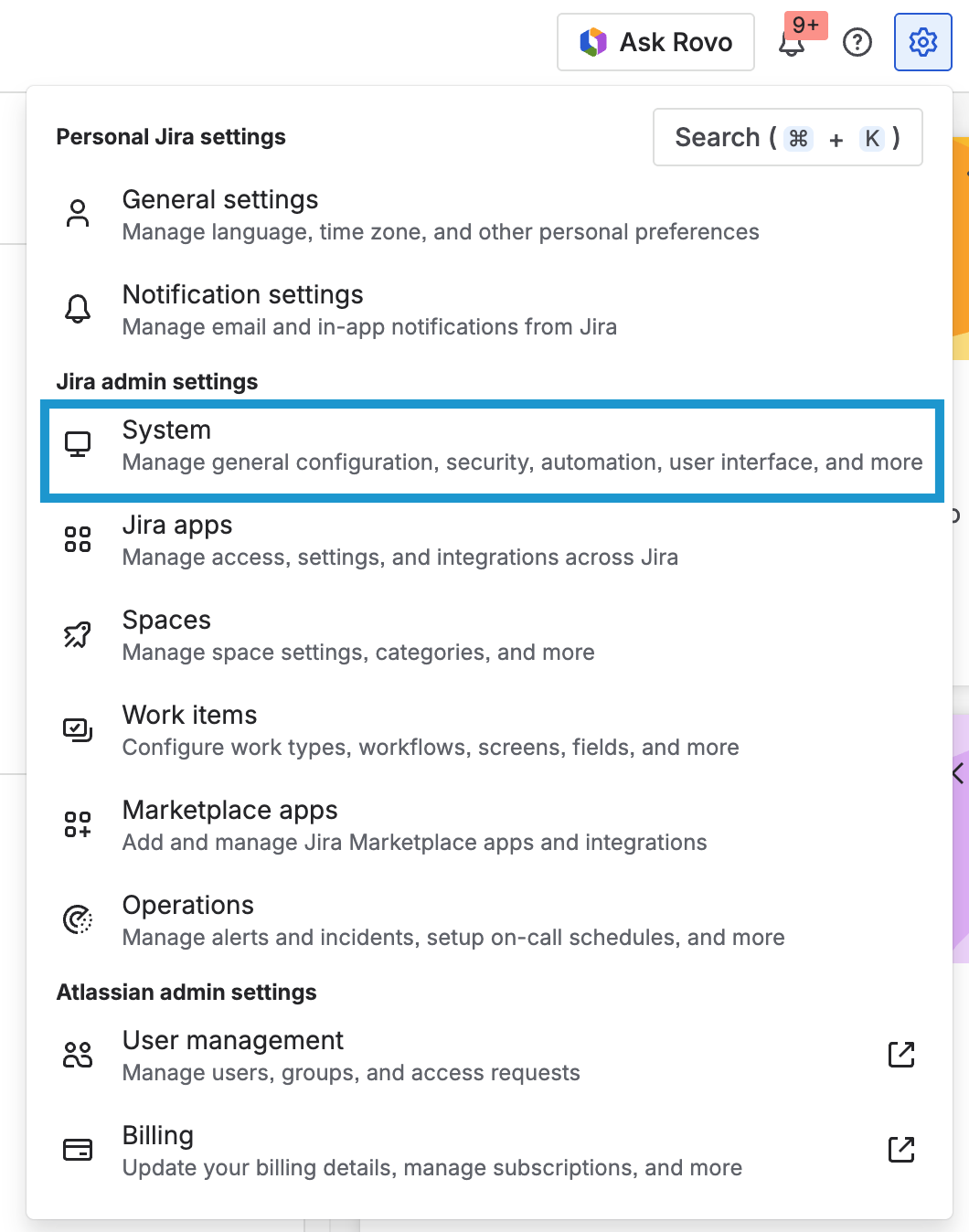
then open “Dashboards” and search for the migrated ones. If you find them, make sure that the permissions for the visibility of the dashboards are configured correctly.
3. Timeout of App Migration Progress
If the app migration progress of Custom Content for Jira shows the status “TIMED OUT”, the most likely root cause is that the Cloud instances uses an outdated version of the app.

Resolution
There might be two reasons why you are getting this error.
Outdated app version:
Please check the minimum version requirements noted in the prerequisites section of our Migration Walkthrough and update the app accordingly. For details on updating apps see https://confluence.atlassian.com/upm/updating-apps-273875710.html.
Gadgets with empty string in their Refresh interval configuration:
The gadget configuration dialog saves the refresh interval as free text. If a Custom Content gadget was saved with an empty refresh interval the app cannot export this gadget's configuration during the migration. You can verify this in the atlassian-jira-migration.log file on your Jira Server / Data Center instance, which contains an error similar to this:
ERROR [atlassian.migration.app.AbstractCloudMigrationRegistrar] Failed to execute server listener for app-migration ... com.tngtech.jira.plugins.customcontent.jira-gadget-custom-content ... with exception: java.lang.NumberFormatException: For input string: "" at com.tngtech.jira.plugins.customcontent.persistence.dao.MigrationDaoImpl.convert(...) at com.tngtech.jira.plugins.customcontent.migration.ForgeMigrationListener.onStartAppMigration(...)
Before your migration you will need to identify the affected gadget(s) by running this query against your Jira Server / Data Center database:
SELECT pc.id AS gadget_id, pp.pagename AS dashboard_name, gup.userprefvalue AS refresh_interval FROM gadgetuserpreference gup JOIN portletconfiguration pc ON pc.id = gup.portletconfiguration JOIN portalpage pp ON pp.id = pc.portalpage WHERE pc.gadget_xml LIKE '%customcontent/custom-webpage-gadget.xml%' AND gup.userprefkey = 'refreshInterval' AND (gup.userprefvalue IS NULL OR NOT REGEXP_LIKE(gup.userprefvalue, '^\d+$'));
Open each affected dashboard in Jira Server / Data Center, edit the affected Custom Content gadget, and enter a numeric refresh interval. If you do not want your gadgets to refresh, you should use 0.
Please note that this is an unintended behavior which we discovered recently. Our team is working on a new release which will resolve this behavior.
4. Duplicated gadgets
In some scenarios, duplicated gadgets may be added to dashboards. For details see limitations.
Resolution
Currently, the only workaround is to remove these additional gadgets afterwards.
Still having problems
If you have further questions or problems, please open a support request.