
Select Issues to Print
You can select the issues for printing from Jira boards, issue search or issue view.
Print Issues from Agile Board
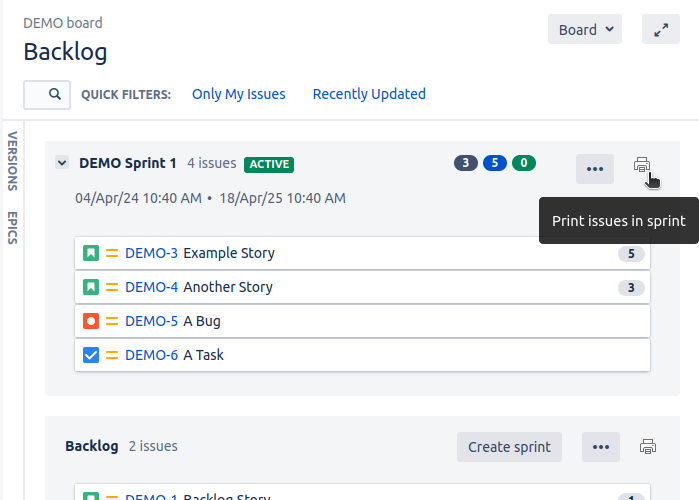
Print sprint from the backlog
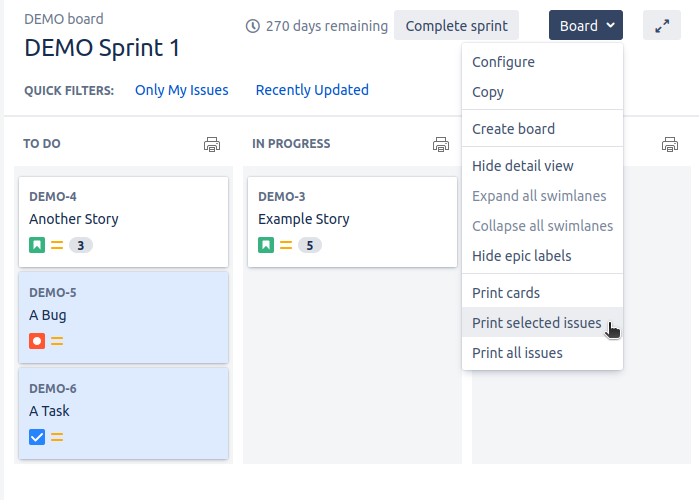
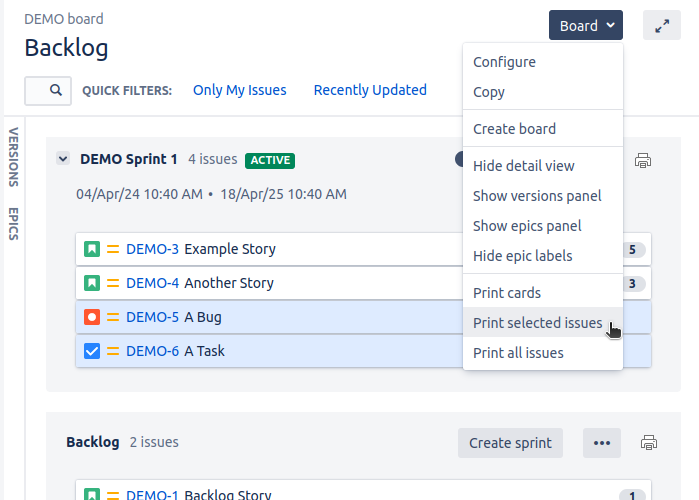
Print selected issues …
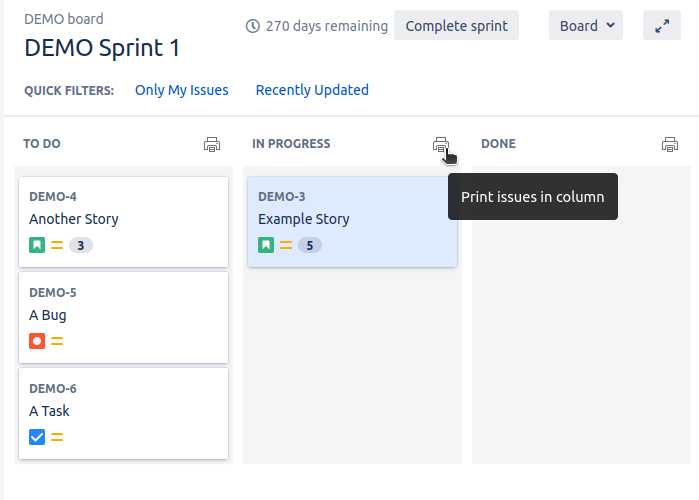
Print issues in column
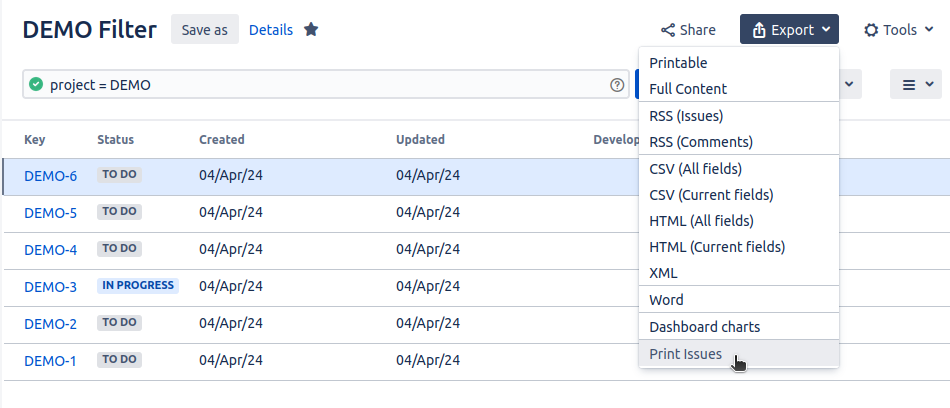
Issue Search
Print issues from any search or filter
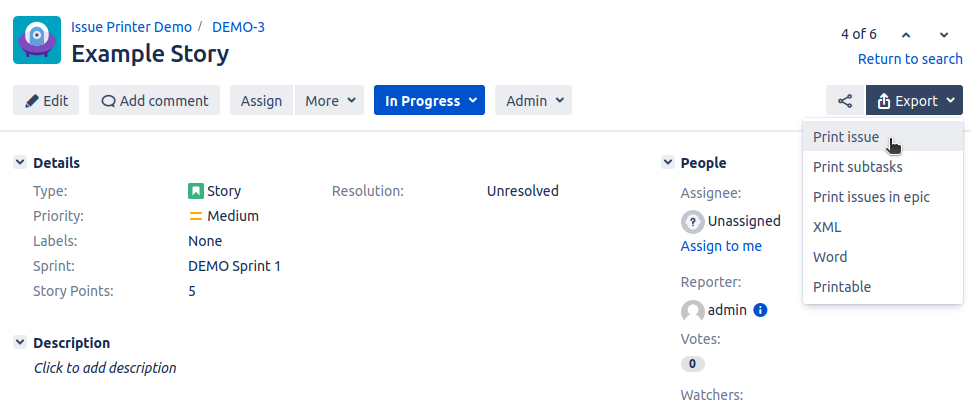
Issue View
Print a single issue
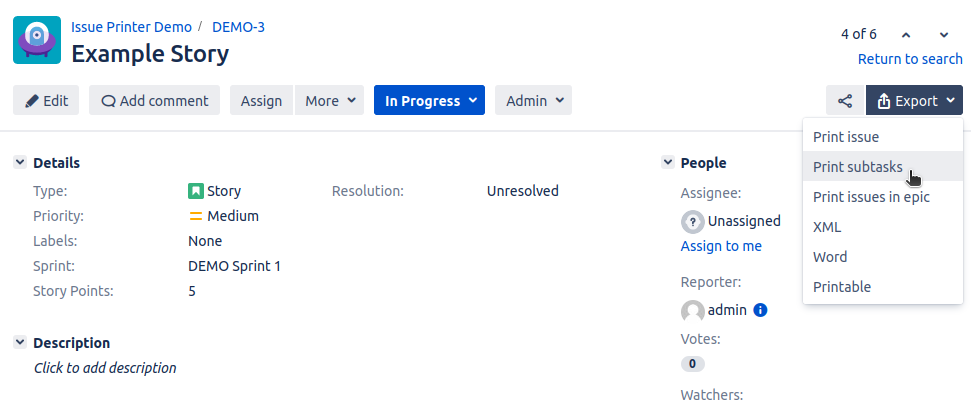
Print all sub-tasks of an issue
Select a Template and Print
After you have clicked on the print icon or the print menu item, you are redirected to the print preview page. You can print the issues using the default template or select any other template from the list. To access project templates from other projects, change the project in the upper left corner. The preview is updated immediately. Click the Print button or use the browser menu to print your issues.
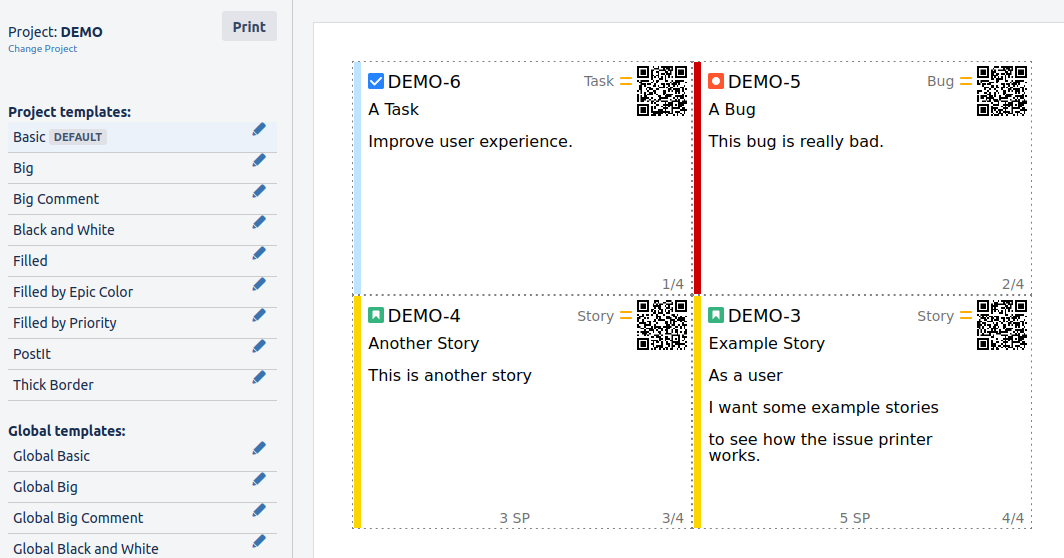
Please ensure in the print dialog of your browser that margins, format and orientation are configured correctly. You may also deactivate the printing of the header and footer of the page.