
Setting up a new Survey
To create a new Survey you have to follow some basic steps:
-
Open a page and add a Survey macro either by typing
{Survey}or by adding it via the "Insert more content" (the "+" sign) at the top of the page, click "Other macros" and searching for Survey.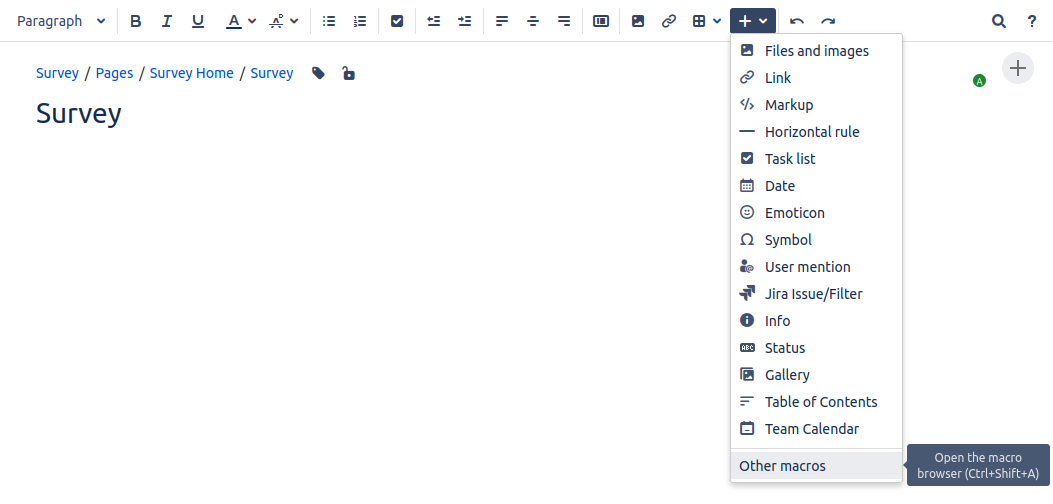
-
Click on the “Survey“ macro.

-
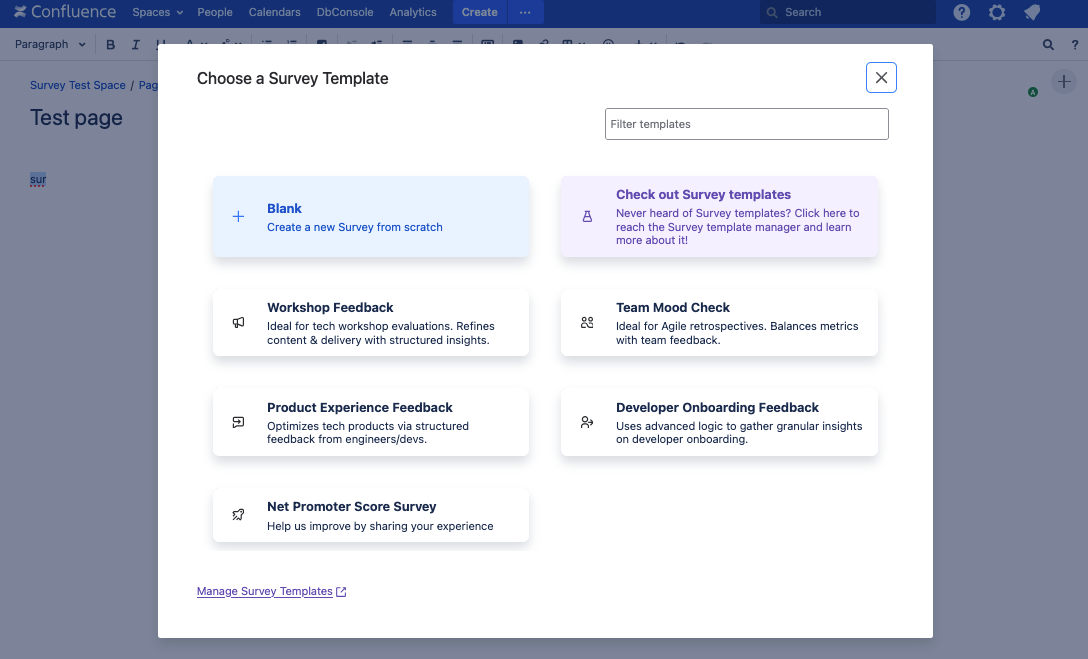
Once the Survey macro is added to the page, a dialog will open.
-
By clicking on “Blank”, you can create a blank Survey. Alternatively, you can start from a Survey Template by clicking on another tile. This will then open the Survey creator.
The Survey creator
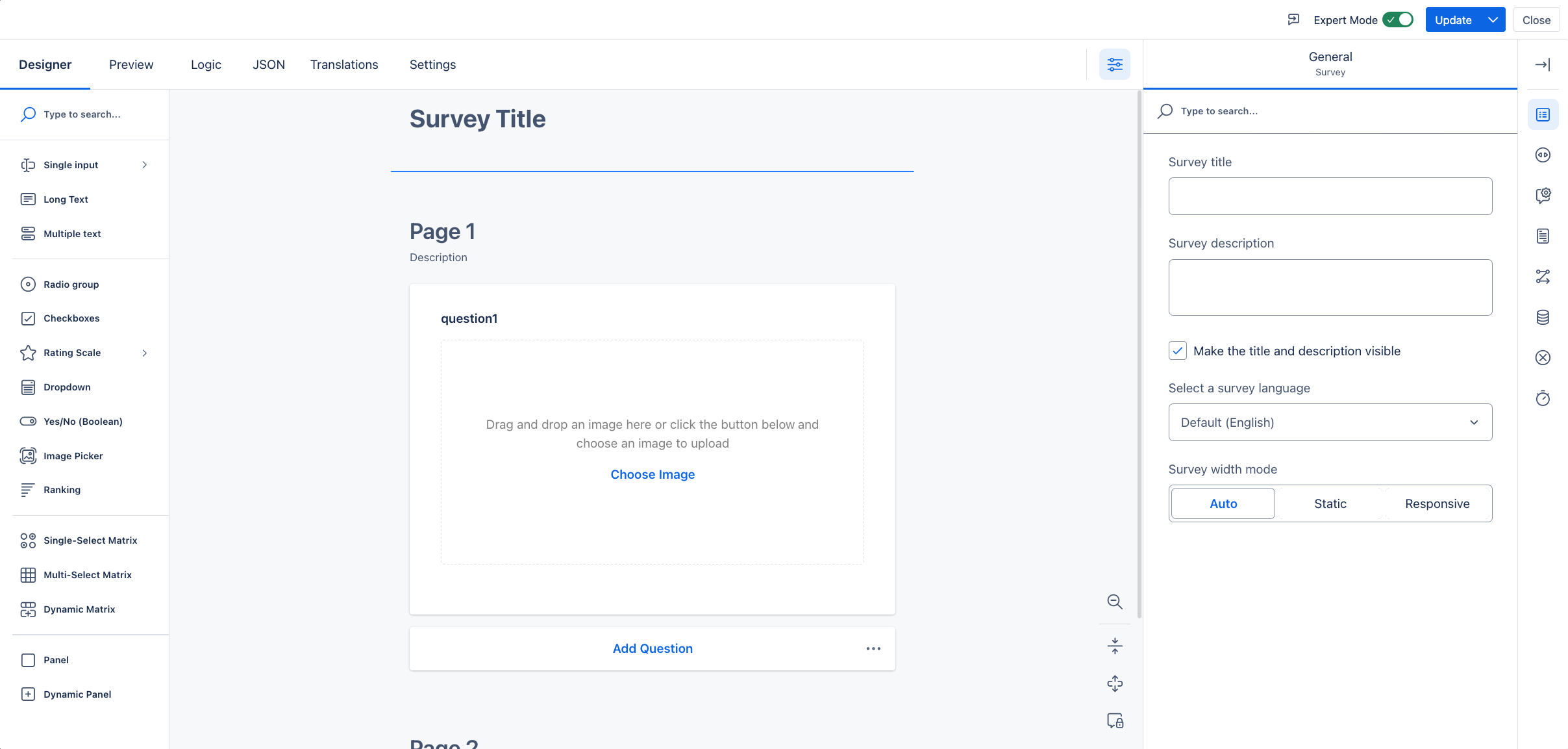
Designer modes
A Survey manager can create a Survey in two different designer modes:
-
Basic
-
Advanced
You can switch the designer mode in which you are creating the Survey by clicking the “Advanced Settings” toggle.
Update the Survey
Saving the Survey can be done by the blue button at the top right of the Survey creator. There are three different options:
-
Update (default option): The state of the Survey is saved and therefore visible for all users. You will leave the Survey creator.
-
Save (reachable via the drop-down): Saving the current state of the Survey. All changes will be visible for other users. But you will continue to edit the Survey.
-
Save as new Template (reachable via the drop-down): This will save the current Survey as a Template for re-use.
Please refer to the following links to see the options available for a Survey manager when creating a Survey in the Survey creator. Some options are only available in the advanced mode.