When auto-translation is activated, all Confluence pages are automatically translated into your preferred target language. Please follow these steps to use it:
Configure auto-translation in user settings
Go to your user profile and find the Translator Settings tab.
Your Confluence administrators need to allow auto-translation! If they disallowed auto-translation, you will find a hint here in your Translator Settings.
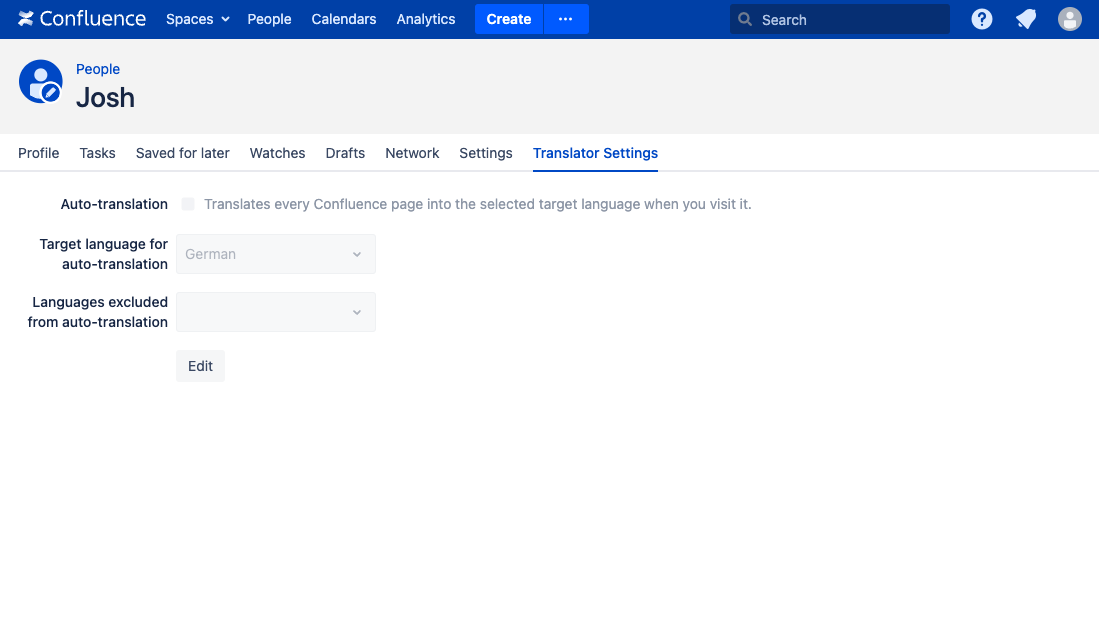
If your Confluence administrators allow auto-translation, you will see a grayed-out checkbox for activating/deactivating auto-translation, a grayed-out field for selecting the target language, a grayed-out field for selecting languages to be excluded from auto-translation and an Edit button.
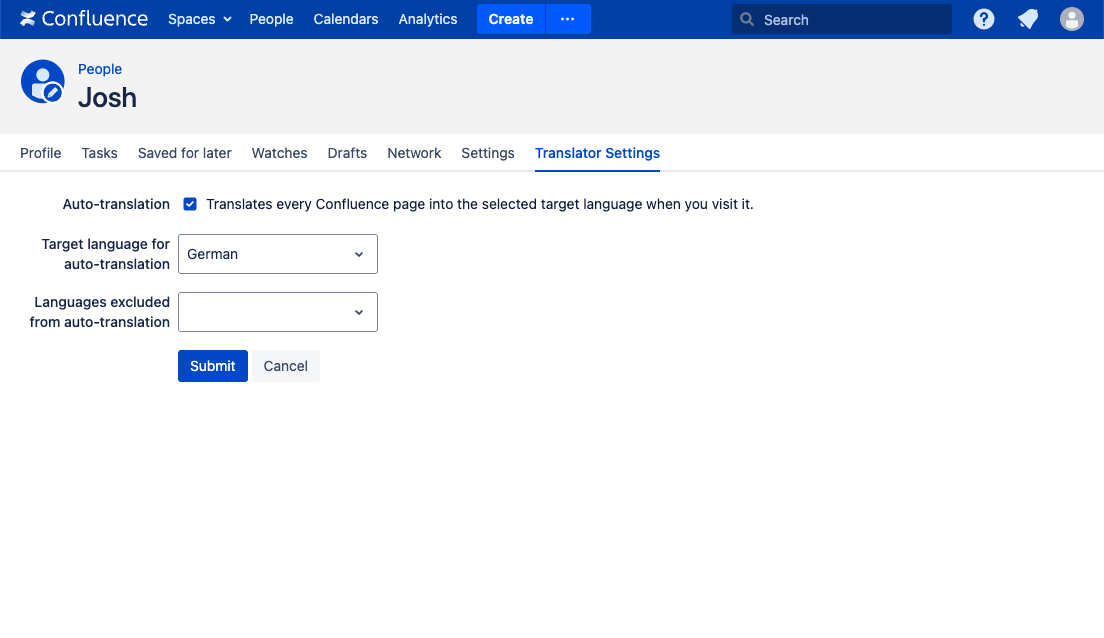
Click on Edit to change these settings. Finally, click on Submit to apply your settings. To submit your settings, you must have selected a valid target language. To keep your current settings, you can click Cancel.
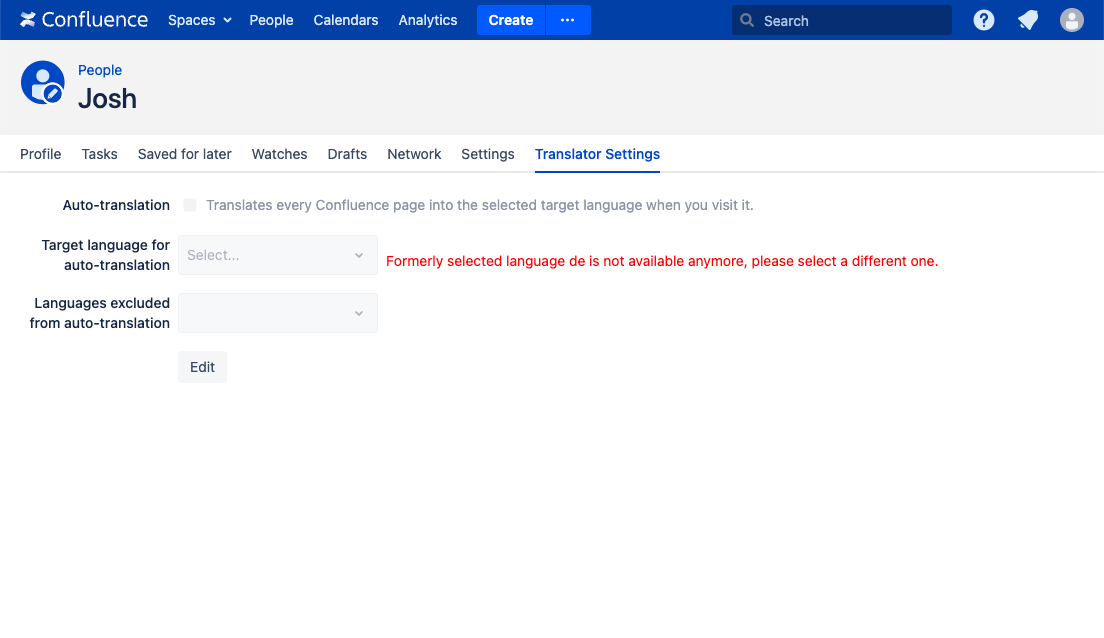
If the selected target language is no longer available, a warning is displayed next to the field for selecting the target language. In this case, please choose a new valid target language.
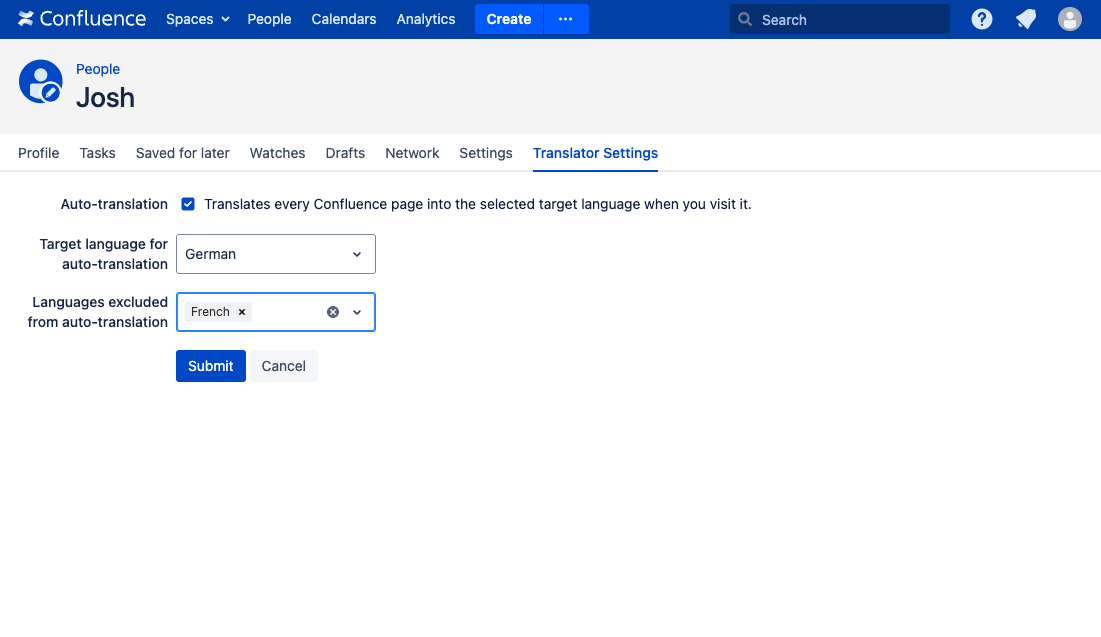
Exclude a language from auto-translation as a user
Multilingual Confluence users can preserve the page content, e.g. in languages they speak proficiently, by excluding them from auto-translation. To exclude languages from auto-translation, users can add them to the Languages excluded from auto-translation field and click on the Submit button.