
When auto-translation is activated, all Confluence pages are automatically translated into your preferred target language. Please follow these steps to use it:
Configure auto-translation in user settings
Go to your user profile and find the Translator Settings tab.
Your Confluence administrators need to allow auto-translation! If they disallowed auto-translation, you will find a hint here in your Translator Settings.
If your Confluence administrators allow auto-translation, you will see a grayed-out checkbox for activating/deactivating auto-translation, a grayed-out field for selecting the target language and an Edit button.
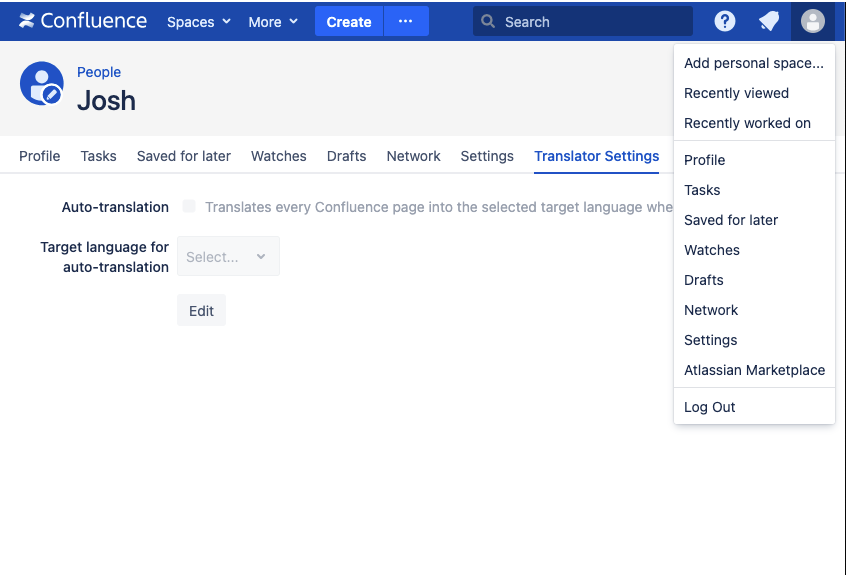
Click on Edit to change these settings. Finally, click on Submit to apply your settings. To submit your settings, you must have selected a valid target language. To keep your current settings, you can click Cancel.
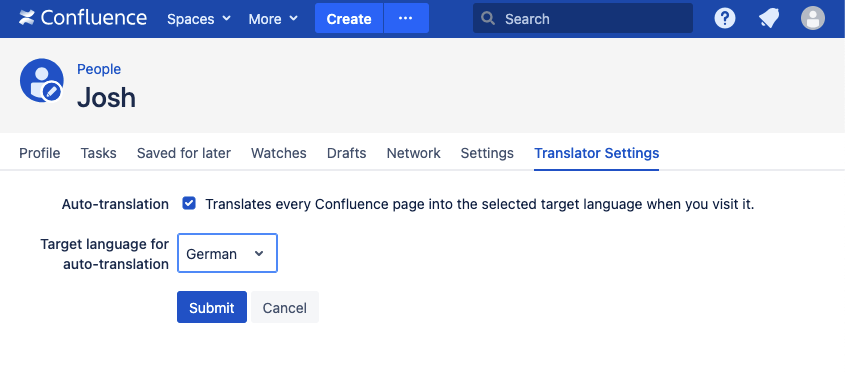
If the selected target language is no longer available, a warning is displayed next to the field for selecting the target language. In this case, please choose a new valid target language.