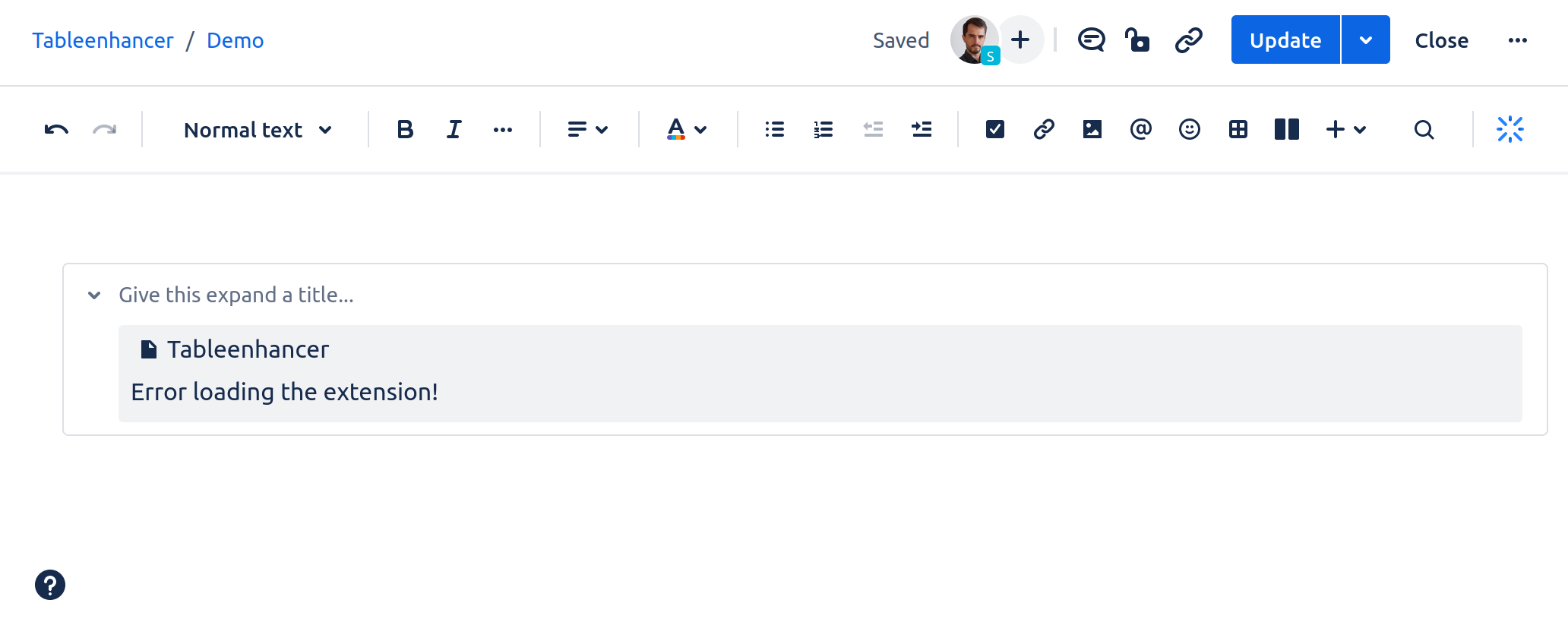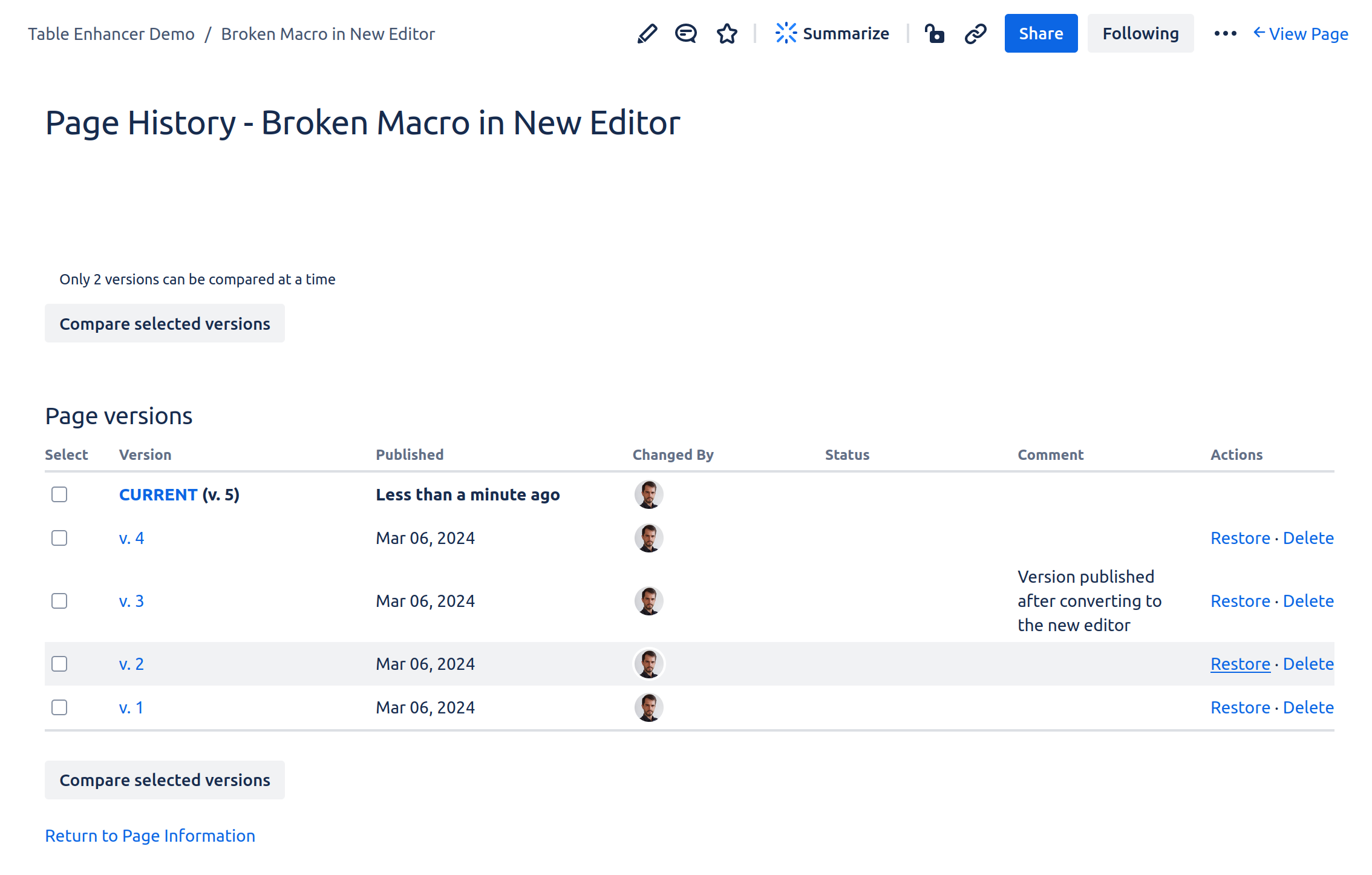
After you migrate your pages with Confluence Cloud Migration Assistant, the migrated pages will be using the legacy editor, and you need to convert your pages to the new editor. As the new editor imposes more restrictive rules on content nesting than the legacy editor, the Table Enhancer macros wrapped in other macros will break and lose their content during editor conversion.
If your page contains a legacy Table Enhancer macro that is wrapped in another macro, then to avoid breaking any macros while converting a page:
-
Open the page in the legacy editor
-
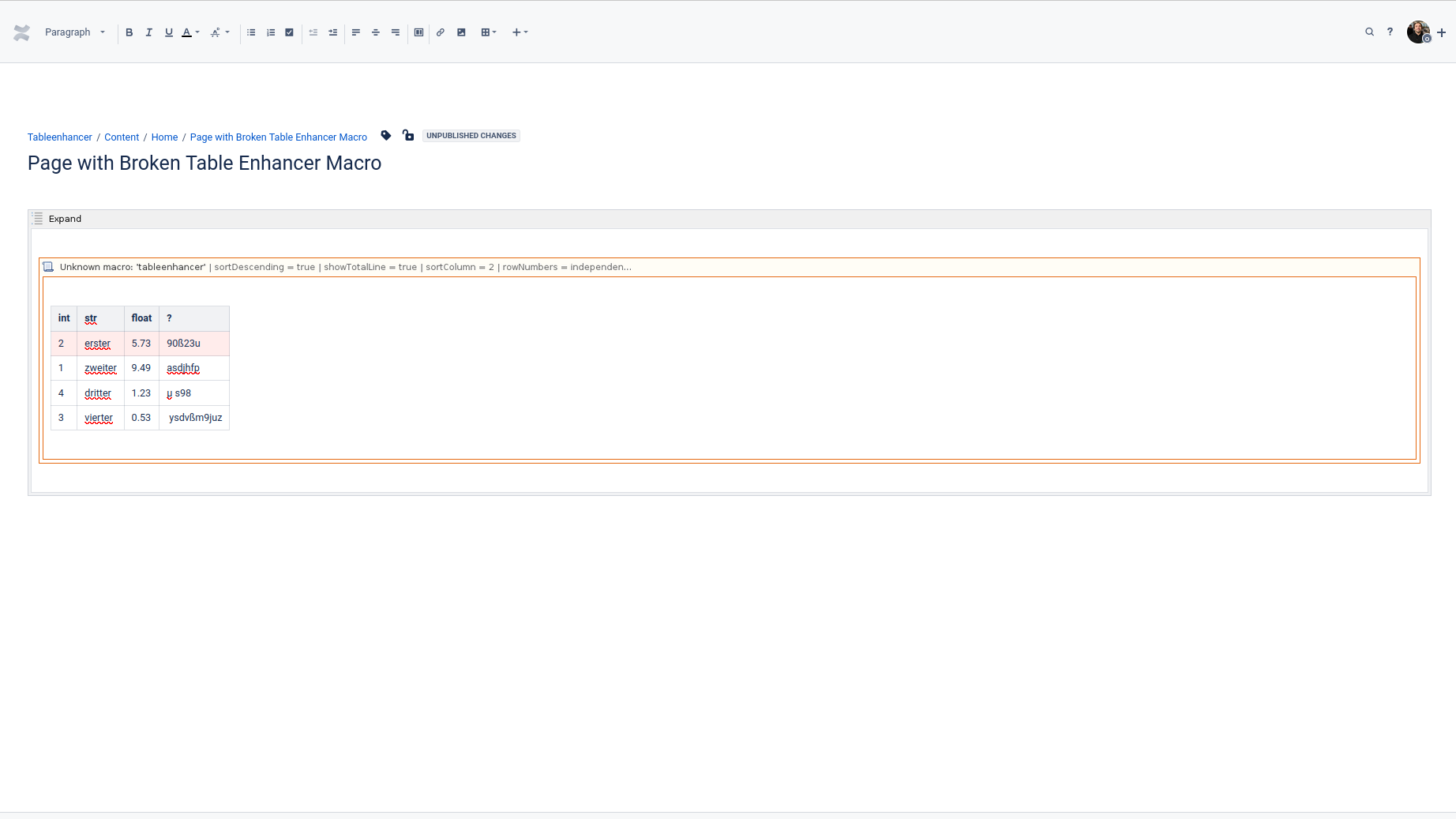
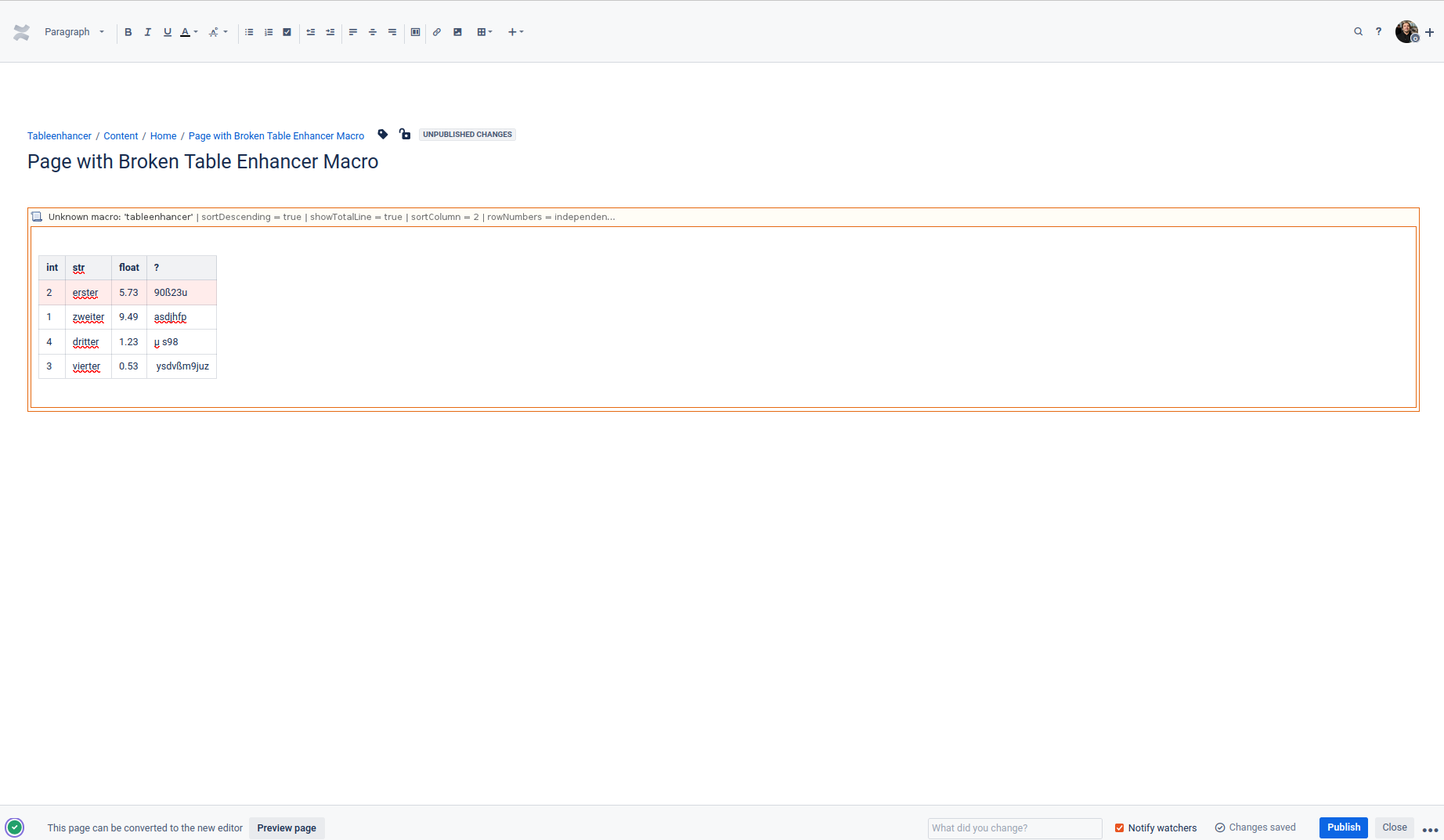
Extract all nested legacy Table Enhancer macros to the ambient page and update the page
Afterwards, you convert the page to the new editor as you usually would.
Fix Broken Legacy Table Enhancer Macros
If you have not extracted all legacy Table Enhancer macros to the ambient page before converting to the new editor, your page will contain broken legacy Table Enhancer macros after the editor conversion. To resolve this issue:
-
Open the page in the legacy editor
-
Extract any nested legacy Table Enhancer macro to the ambient page and update the page
Afterwards, redo the editor conversion as you usually would.