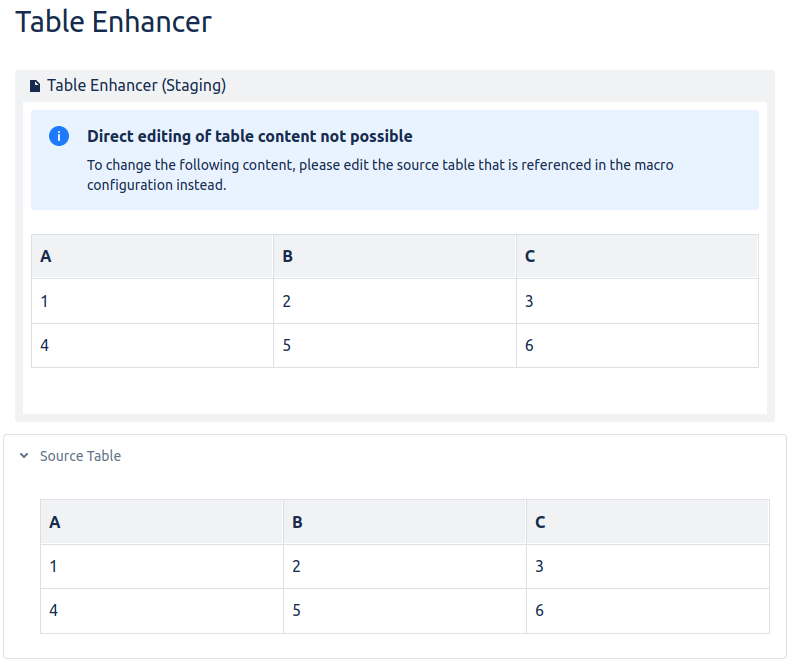
Insert a Table Enhancer macro into a page and add a table to the configuration of the Table Enhancer macro.
Instructions
-
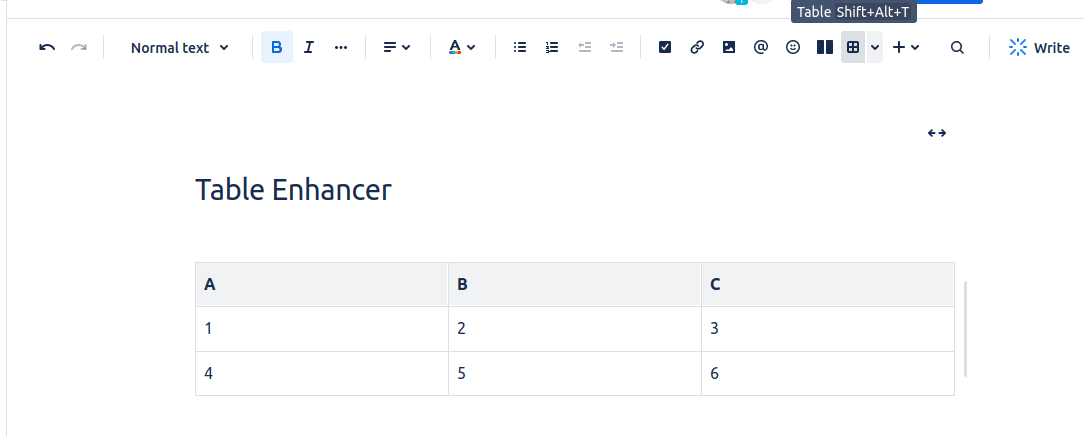
Create a new page or edit an existing page to create a new Table. Click on Table and add it to the page. Fill the table.
-
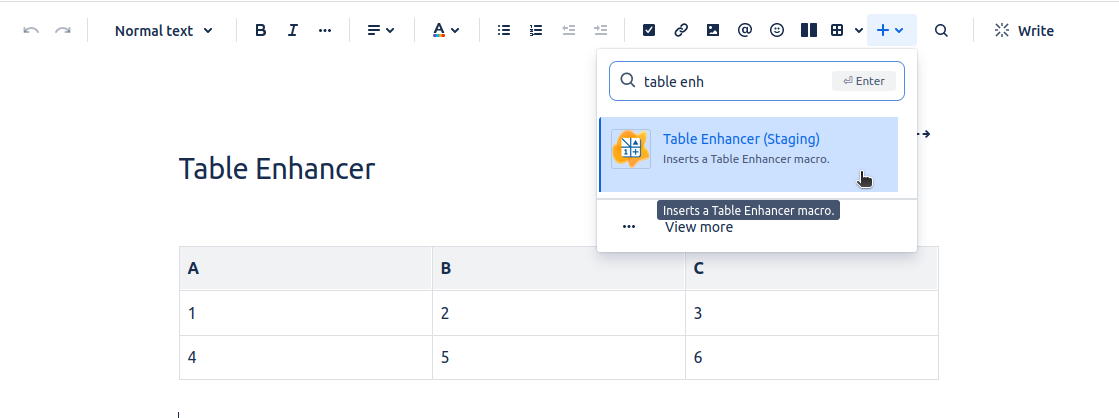
Click on the “+” icon in the toolbar. Type “table enh” into the search field and select the Table Enhancer macro to add it to the page.
-
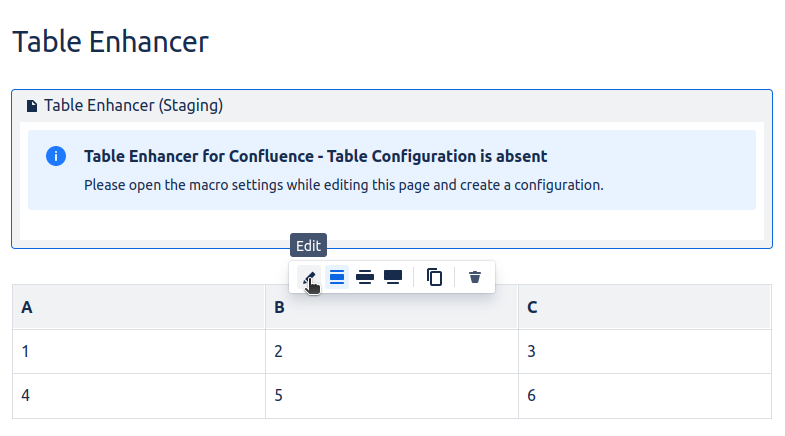
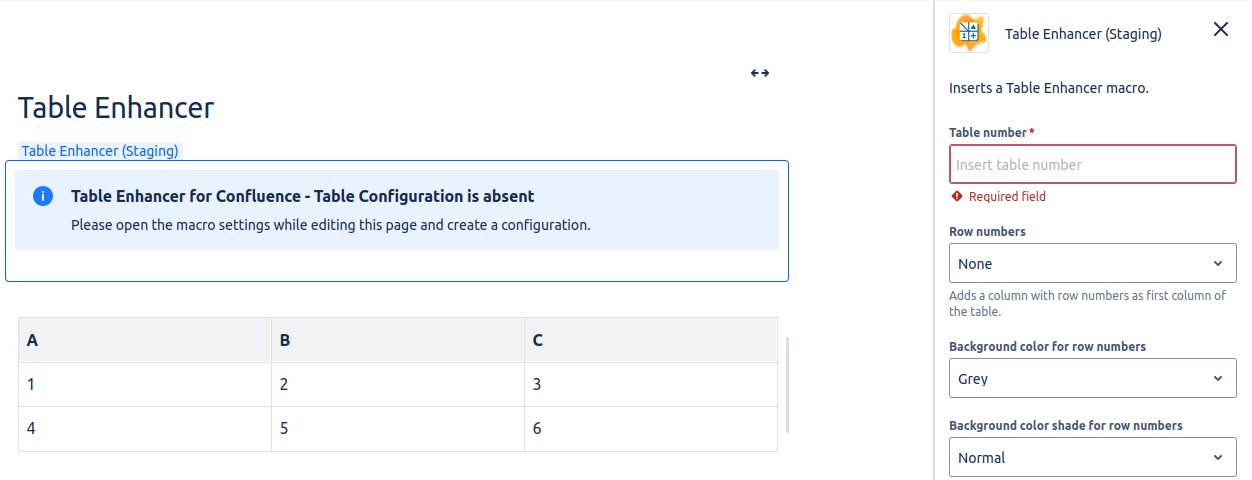
A new macro appears with an information message.
-
To configure the Table Enhancer macro click on “Edit”. A detailed list of all the configuration options can be found here.
-
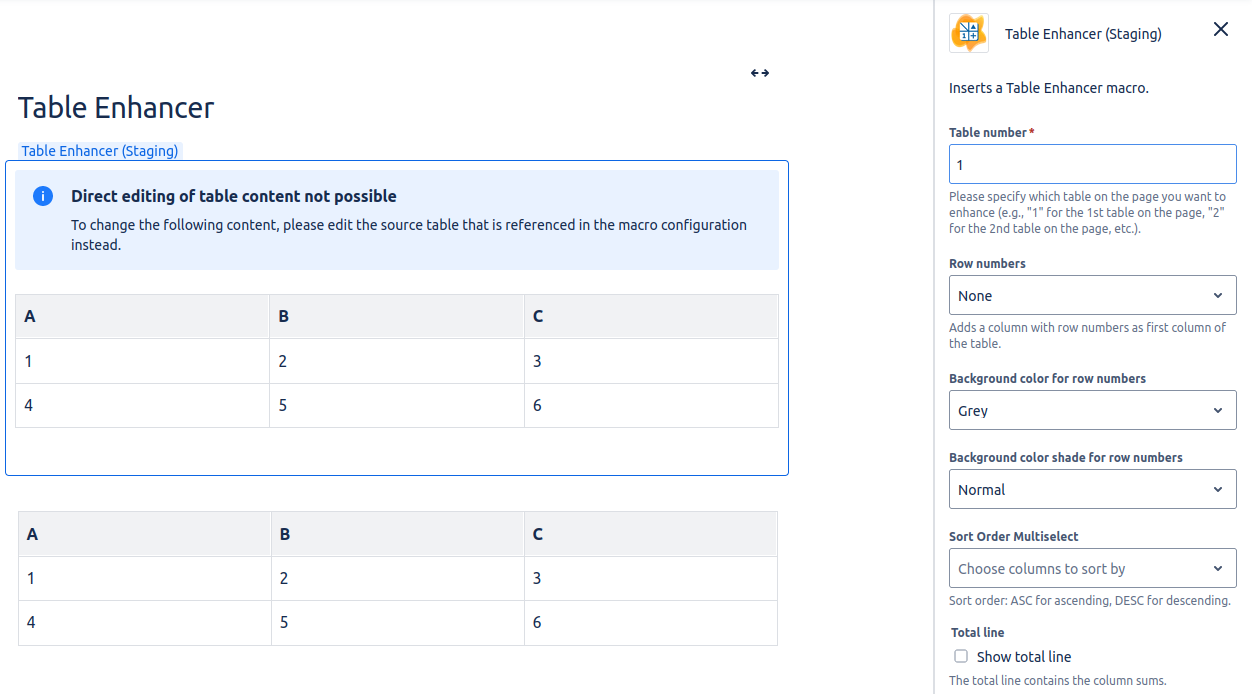
Choose the table number in the configuration of the Table Enhancer macro.
Congratulations! 🎉 You have successfully created your first Table Enhancer macro.
-
When editing the source table, the table content in the Table Enhancer macro will be automatically updated when you stop typing.
-
If you don’t want to see the source table for the Table Enhancer, you can place it inside an expand macro and hide it.