
This page will attempt to help you resolve common issues when attempting to migrate your app data through the Jira Cloud Migration Assistant (JCMA). If your issues persist, please open a support request.
“Migration failed” status in the Migration Assistant
There are two cases in which the Migration Assistant page will show a “Migration failed” status:
-
The migration fails during the updating of workflows on Cloud.
-
The migration fails during the data transfer stage between Data Center and Cloud.
1. The migration fails during the updating of workflows on Cloud.
If an unexpected error occurs after data is transfered from the Data Center instance into the Cloud instance, the Workflow Enhancer for Jira app migration can be retried from the administration panel.
Simply press the ‘Retry migration’ button to attempt another migration.

This will retry the migration, and keep track of the migration retry attempt for your convenience.

If the migration continues to fail, it may be due to a problem with JCMA itself and you may need to perform a new migration.
2. The migration fails during the data transfer stage between Data Center and Cloud.
If the migration fails during the data transfer stage between Data Center and Cloud, you will be unable to retry the app migration through the administration panel. Instead, you may need to perform a new migration of your workflows from your Data Center instance onto your existing Cloud site.

Performing a new migration onto your existing Cloud site
If you need to retry a new migration after a previous migration failed onto an existing Cloud site, you will first need to remove some existing data, or the JCMA will not work correctly.
1. Delete any spaces associated with workflows you wish to re-migrate
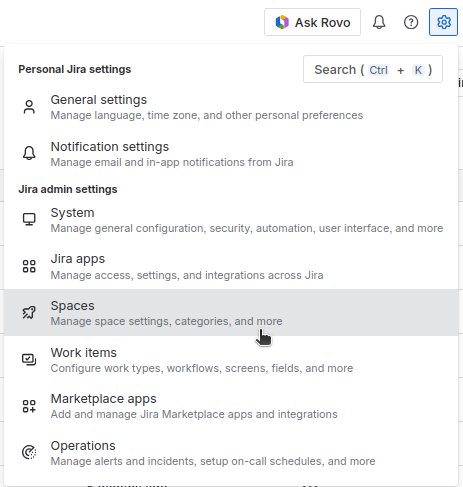
As a Jira site-administrator, Navigate to the “Manage spaces” settings menu by clicking the ⚙️ → “Spaces” option in the top right of your screen.
Then, for any space(s) associated with workflows you wish to re-migrate, click on the three dots on the right, and select “Move to trash”
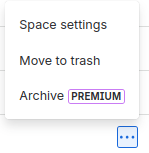
Finally, navigate to “Trash” in the left navigation panel. Click on the three dots on the right of each workflow, and select “Delete now”.

2. Delete workflow schemes
As a Jira site-administrator, Navigate to the “Workflow schemes” settings menu by clicking the ⚙️ → “Work items” option in the top right of your screen, then selecting “Workflow schemes” from the left navigation menu.
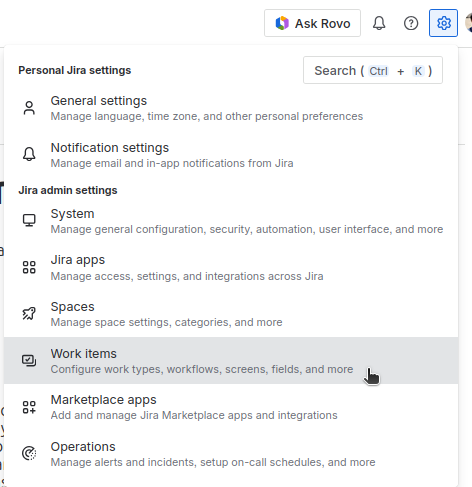
At the bottom of the screen, expand the “Inactive” workflows section and Delete any workflow schemes associated with workflows you wish to re-migrate.

3. Delete workflows
After deleting any associated workflow schemes, click on “Workflows” in the left navigation menu to navigate to the workflows table. Select the “Inactive workflows” tab above the workflows table.
Next to any workflow you wish to re-migrate, click on the three dots on the right, and select “Delete”

4. Perform a new migration from Data Center
Once all spaces, workflow schemes, and workflows that you wish to re-migrate have been deleted, you can perform a fresh migration using the Jira Cloud Migration Assistant in your Data Center instance. You can view instructions on how to perform a migration here.