
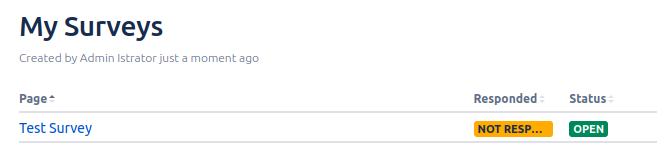
The “My Surveys” macro shows a list of Surveys where the current user has a permission (that is, can vote in or manage the Survey). This is especially useful on a landing page to show the user open Surveys that they should vote for.
How to use My Surveys?
-
Open a Confluence page where you like to see an overview of your Surveys.
-
Click on the “+” icon in the toolbar and select “Other macros”. Type “My Surveys” into the search field and select the My Surveys macro to add it to the page.
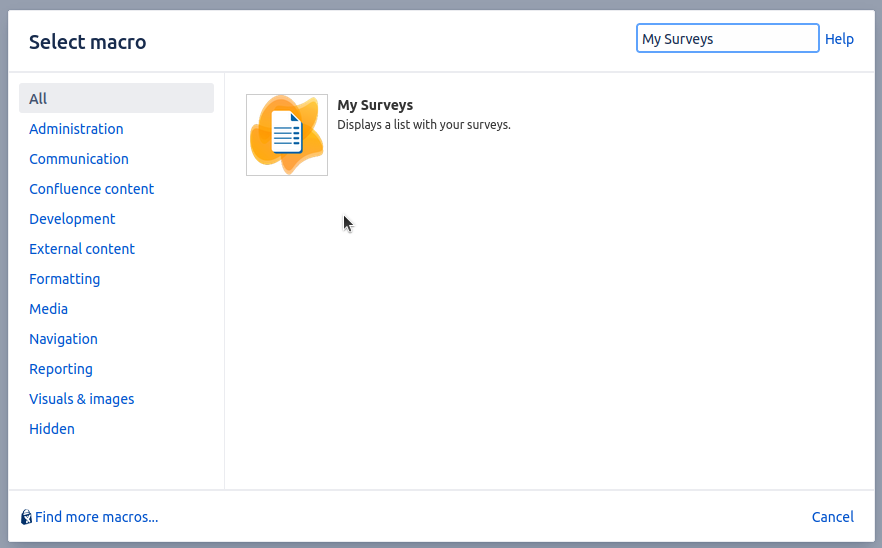
-
A new dialog box appears allowing you to configure the My Surveys macro. A detailed list of all the configuration options can be found down bellow.
-
Click “Save” to add the My Surveys macro to the page and update the page.
-
Congratulations! 🎉 You have you now have an overview of your Surveys.
How to configure My Surveys?
-
Open a Confluence page with the My Surveys macro and edit the page.
-
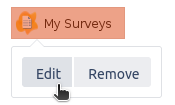
Click on the My Surveys macro to open the toolbar.
-
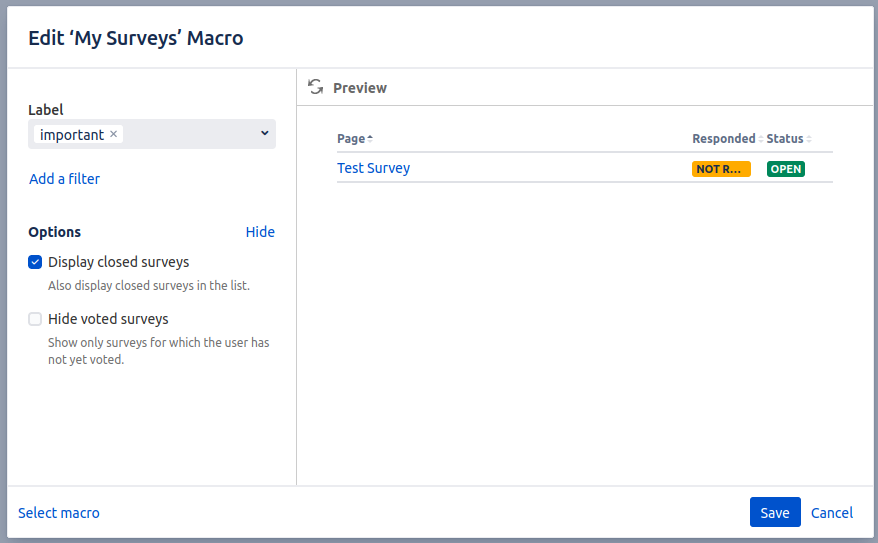
Click on “Edit” to open the configuration options
-
-
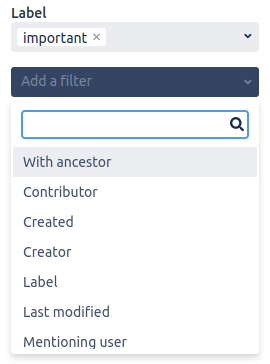
You can filter the displayed Surveys by selecting labels. If the “important” label is selected, only Surveys on pages with the “important” label are shown.
-
Additional filters can be applied by selecting “Add a filter”
-
Closed Surveys are hidden by default. You can display them by unchecking the “Display closed Surveys” checkbox.
-
You can hide voted on Surveys by checking the “Hide voted Surveys” checkbox.
-
-
Click “Save” and update the page to apply the new configuration.