
You need edit permissions on the page the Multivote macro is displayed to be able to perform this operation.
-
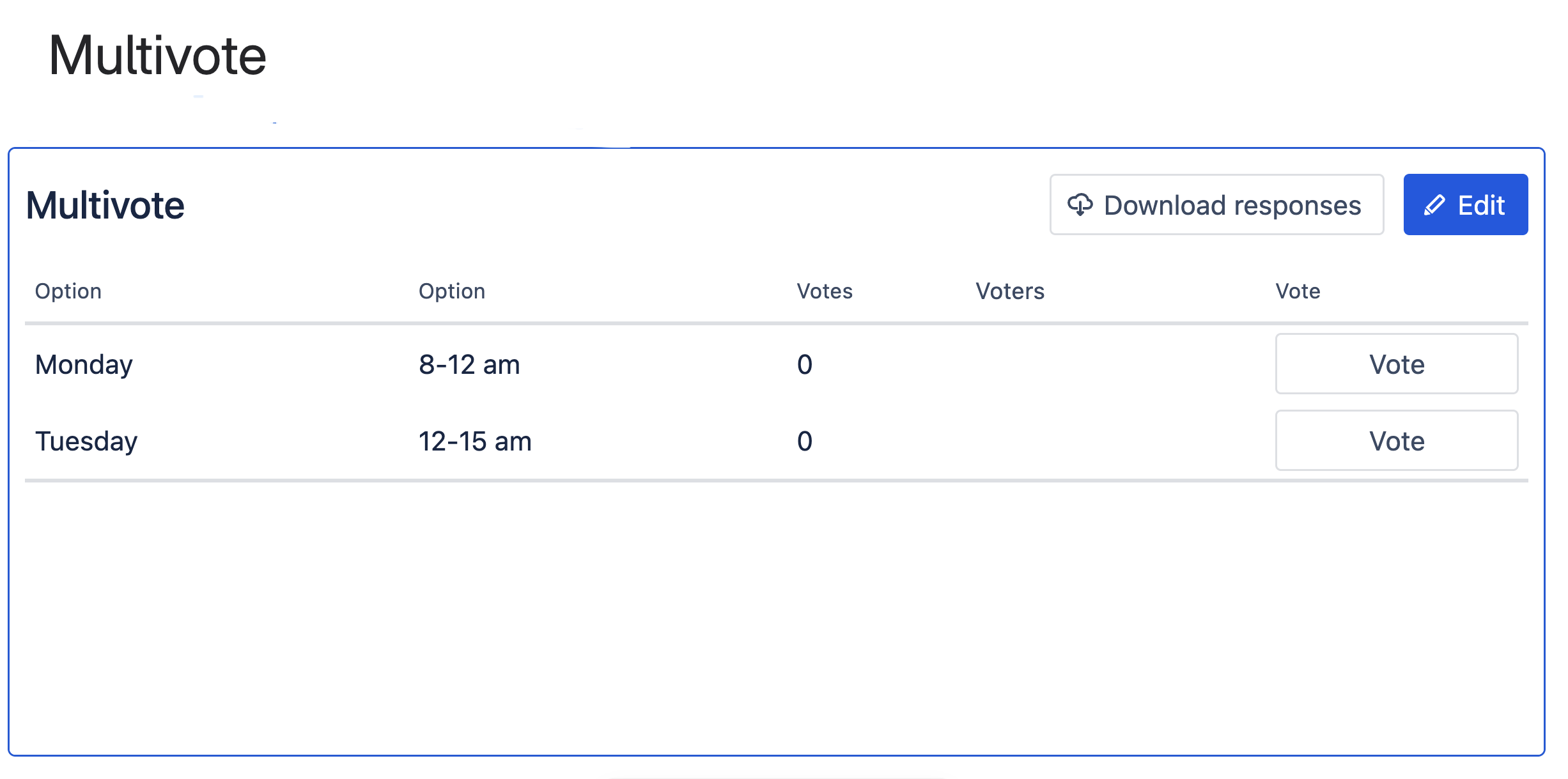
Open a page containing a Multivote macro with more than one column.
-
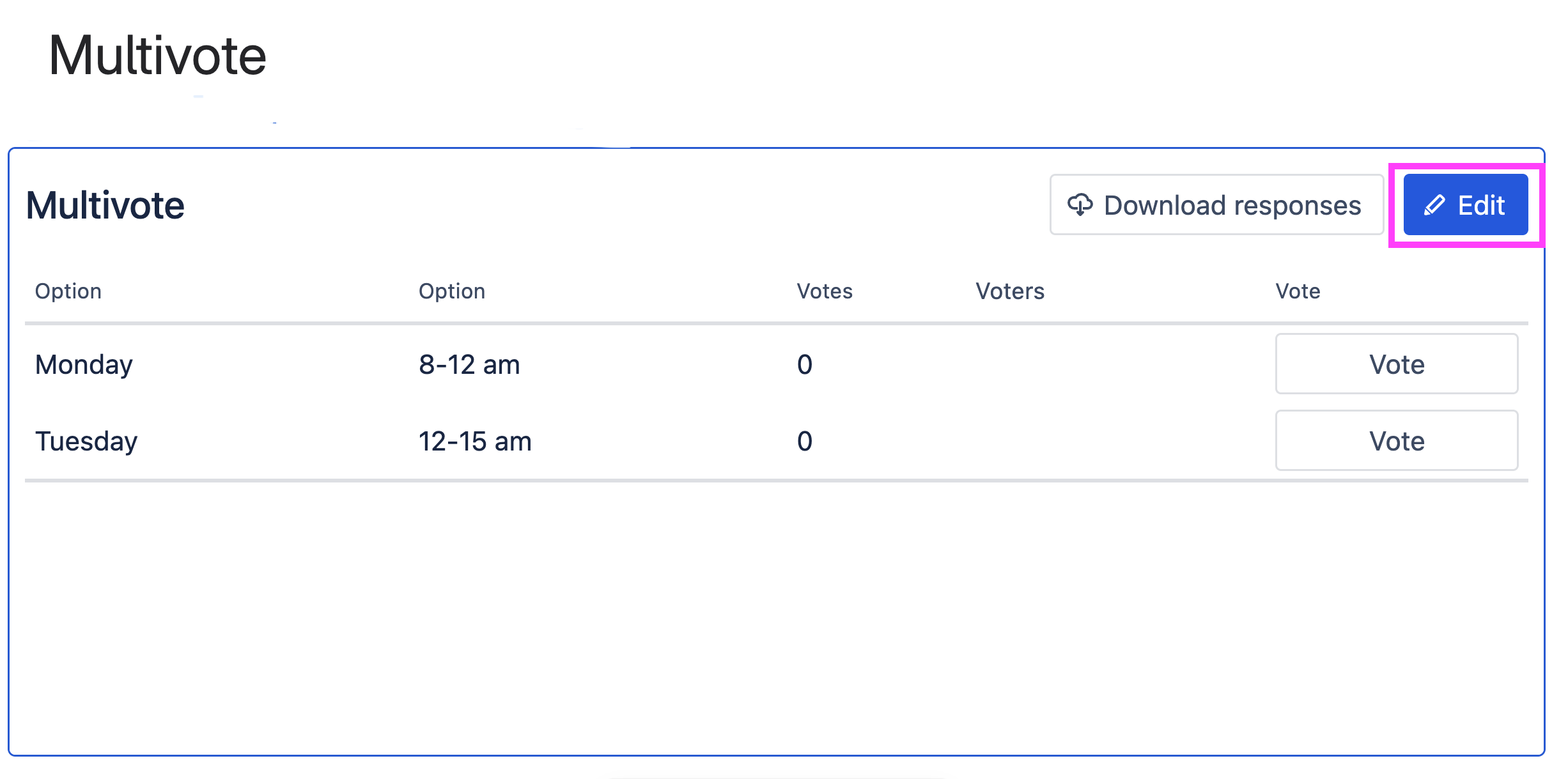
Click the “Edit” button in the top-right corner of the Multivote macro.
-
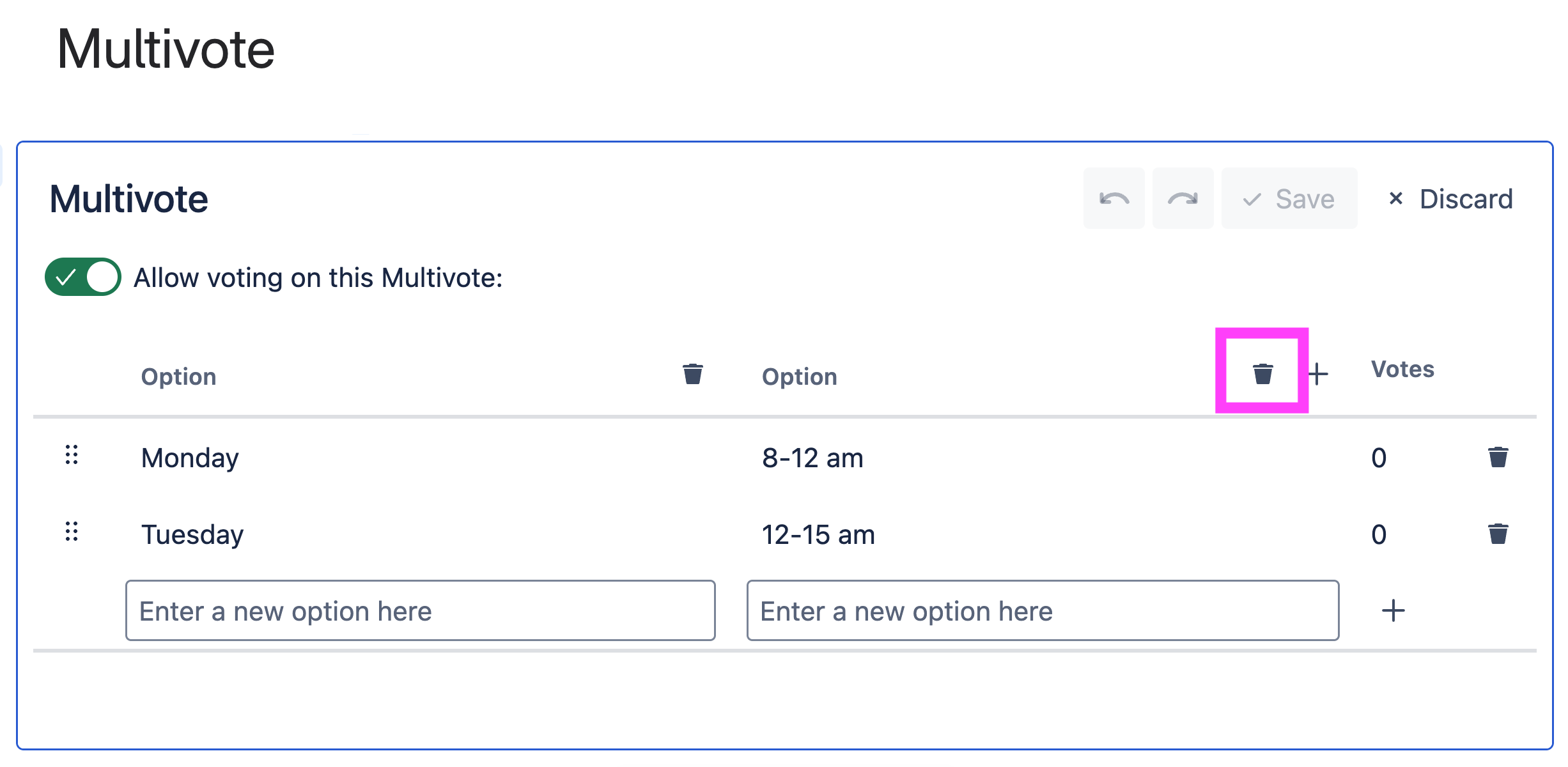
You are now in the edit mode of the Multivote.
-
Next to each column you can see a trash icon. You may delete any of the ‘Option’ columns by clicking on one of trash icon. You cannot have less than one ‘Option’ column.
-
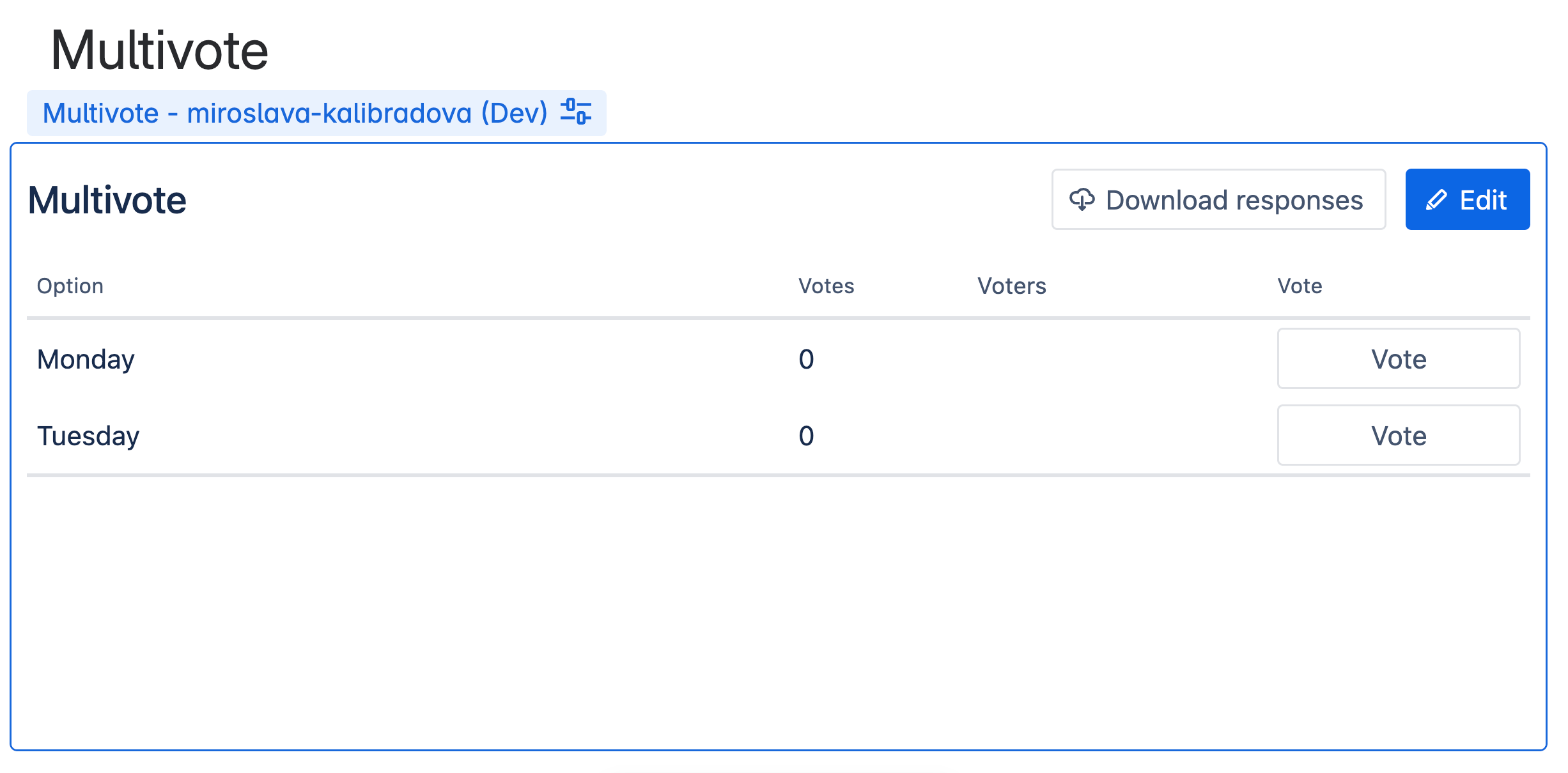
Click the “Save” button in the top-right corner of the Multivote macro.
-
Congratulations! 🎉 You have successfully deleted a column from a Multivote.
While you are in the edit mode, you can undo your last performed action(s) using the undo button or the ctrl + Z keyboard shortcut (Command + z )