There are two ways to create a new Template:
1. Creation via the Template Manager
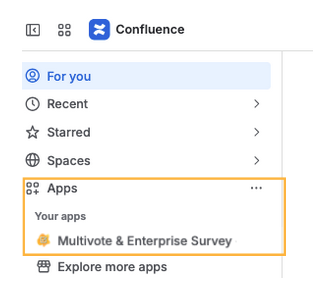
In order to find the overview of all Survey Templates you have access to, first navigate to the general overview of the “Multivote & Enterprise Survey for Confluence” App by clicking on “Apps” -> “Multivote & Enterprise Survey” on the left side-bar
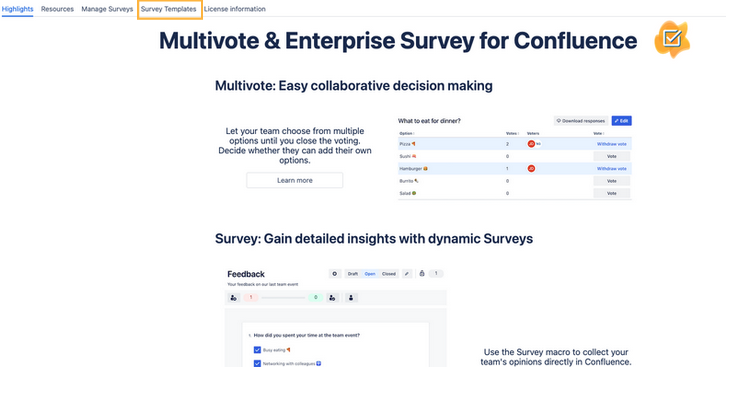
and then navigate to the tab “Survey Templates”.
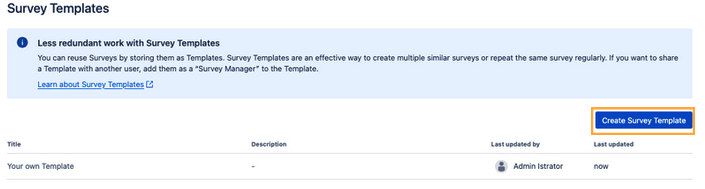
Click on the “Create Survey Template” Button above the overview table.
2. Creation of a new Template from an already existing Survey
Set the Survey that you want to edit as a Template into “Draft Mode”.
Then click on “Edit”.
Click on the dropdown next to the “Update” Button and select the option “Save as Template”
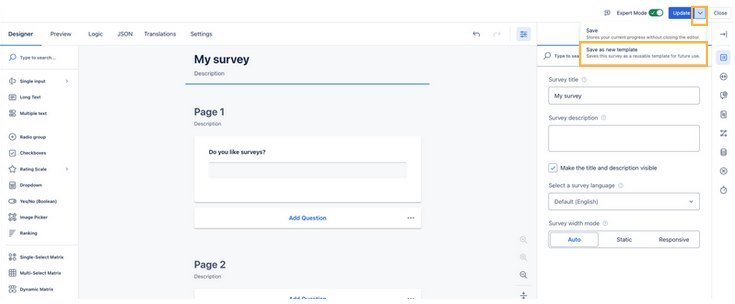
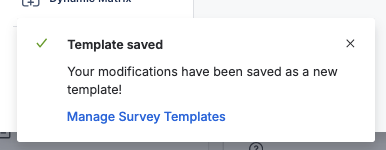
After clicking on “Save as Template”, a flag will appear on the bottom left that the Template has been successfully saved.