
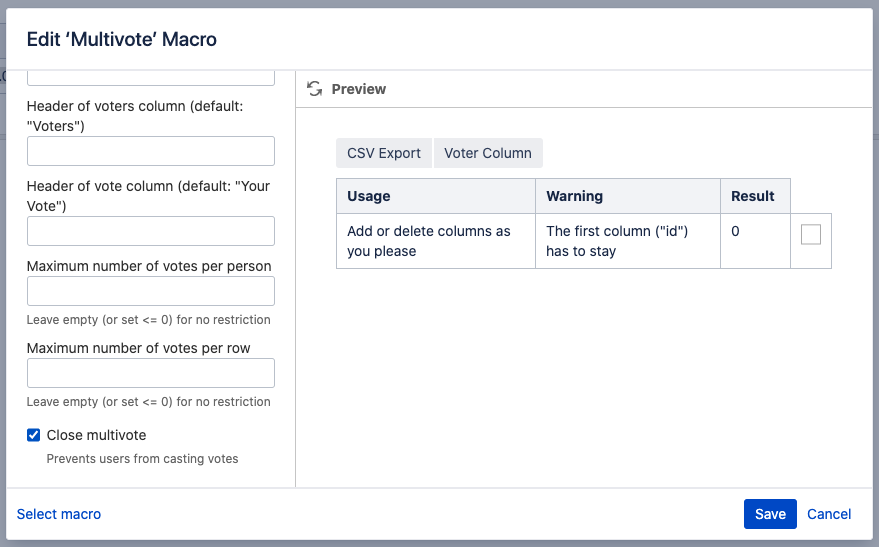
Edit the page, click on the Multivote macro, click on “Edit” and check the “Close Multivote” option to close a Multivote.
Instructions
-
Visit a page containing a Multivote macro. Click on “Edit” to go to the edit mode of the page.
-
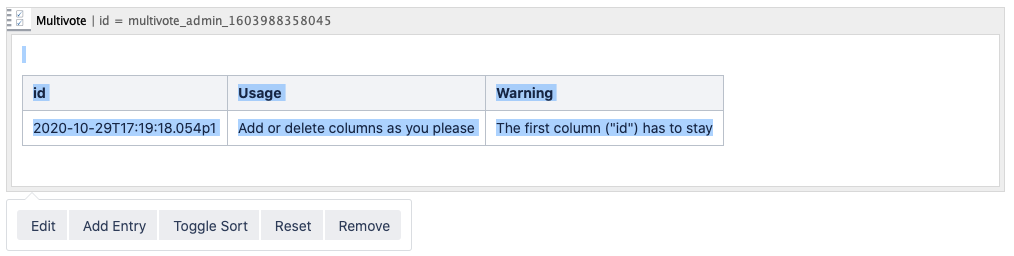
Click on the Multivote macro to open the toolbar.
-
Click on the “Edit” button to configure the Multivote macro.
-
Check the “Close Multivote” checkbox to close the Multivote and prevent users from casting votes.
-
Click on “Save” to save your changes.
-
Save the page.
-
Congratulations! 🎉 You have successfully closed your Multivote.