
When generating a presentation, you can specify content-specific settings, such as language or target audience, as well as slide-style-specific settings, such as background or template.
Settings Panel
You can open the setting panel by clicking the gear icon, on the top right of the saved presentation page, or near the Generate Slides button in the Rock Your Sprint Review tab within your Space.
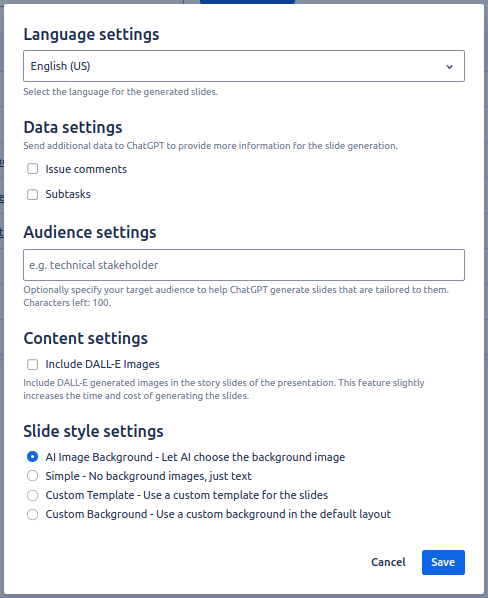
Within the Rock Your Sprint Review tab, there are 5 parts in the setting panel. On the saved presentations page, only the last part (Slide style settings) can be adjusted.
Language Settings
You can set in which language the generated presentation should be. Rock Your Sprint Review supports all languages available for Atlassian.
Data Settings
To provide the AI with more information, you can choose to send also comments and subtasks of your issues. By default, only the issue titles and descriptions are sent.
Content Settings
You can turn on the Include DALL-E Images option to add AI generated images to the slides. This will slightly increase the time and cost of the generating. Note that this feature is only available when using OpenAI, and is not supported by Rovo.
Audience Settings
You can specify a target audience for your slides which will modify the way the slides are written. If left empty the audience will default to a non-technical stakeholder
Slide style settings
This section controls the style of the generated slides. There are currently 4 options.
-
AI Image Background: allow the AI to choose between the pre-defined slide templates based on the slide content.
-
Simple: generate the slides with only text and white background. You can then customize it.
-
Custom template: use your own slide template. Please see Custom Slide Template for details.
-
Custom background: customize background images and font colors on a pre-defined slide template. You can use the Preview button to review the slide customization with some pre-filled data.