
Rovo is Atlassian’s agentic AI system that comes with a number of useful Agents out of the box, but requires a separate subscription. With a Rovo subscription active, you will be able to use the Rock your Sprint Review agent to create presentations using Atlassian’s own AI systems. If you don’t have a Rovo subscription, you can still use the app with your own OpenAI API key.
There are two ways of using Rock Your Sprint Review with Rovo:
-
Generating presentations from selected sprints and issues from the App Tab
-
Generating presentations from the sprint board directly
Generating presentations from the App Tab
This method allows you to select specific issues from multiple sprints to be included within your presentation. First, you need to navigate to the App Tab and select issues for your presentation.
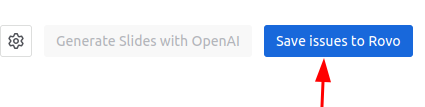
Once you have selected the issues you would like to include within your sprint review presentation, simply click on the Save issues to Rovo button. This will store these issues for the next time you ask Rovo to generate a presentation for you.
Once the issues are saved to Rovo, simply open the Rovo chat interface at the top right of your Jira instance, then click on “Switch to another agent”, search for “Rock your Sprint Review” among the available agents, and select the one from our app.
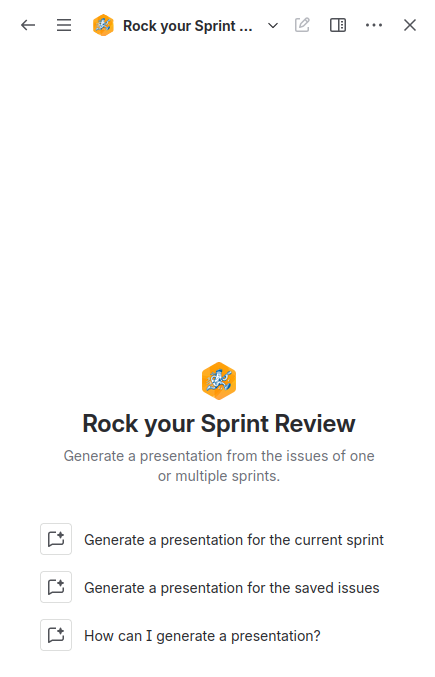
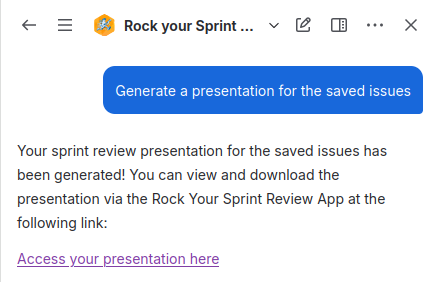
Next, click on “Generate a presentation for the saved issues” And Rovo will automatically generate a link to the app page where you can download your presentation.
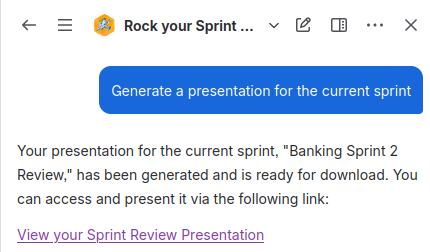
Generating a presentation for a sprint
Our agent is built in such a way that, if you access the agent from a project, you can ask it to directly generate a presentation for you of the current sprint, and Rovo will fetch the required information for you, so that you end up with your presentation straight away.
Alternatively, you can also ask the agent to list the boards or sprints available in your instance or project, and tell it which of these you want to use for your presentation.
Configuring the AI settings
By default, Rovo will use the settings specified directly from the settings panel. You can also make once off changes to the settings by asking it directly. For example, to change the language or target audience of the presentation, simply add this information to your prompt, for example: Generate a presentation for the current sprint in French, targeted at a manager who loves sports.
Rovo is unable to give you a download link directly. Instead, the presentation will be saved and downloadable from our app page. Settings like the pptx template you want to use are accessible from there. After it has finished generating a presentation, our Rovo agent will provide you with a handy link directly to the saved presentations page. Simply follow it, and download the appropriate presentation.