
It is possible to include an image picker in your survey to let participants select one or multiple images.
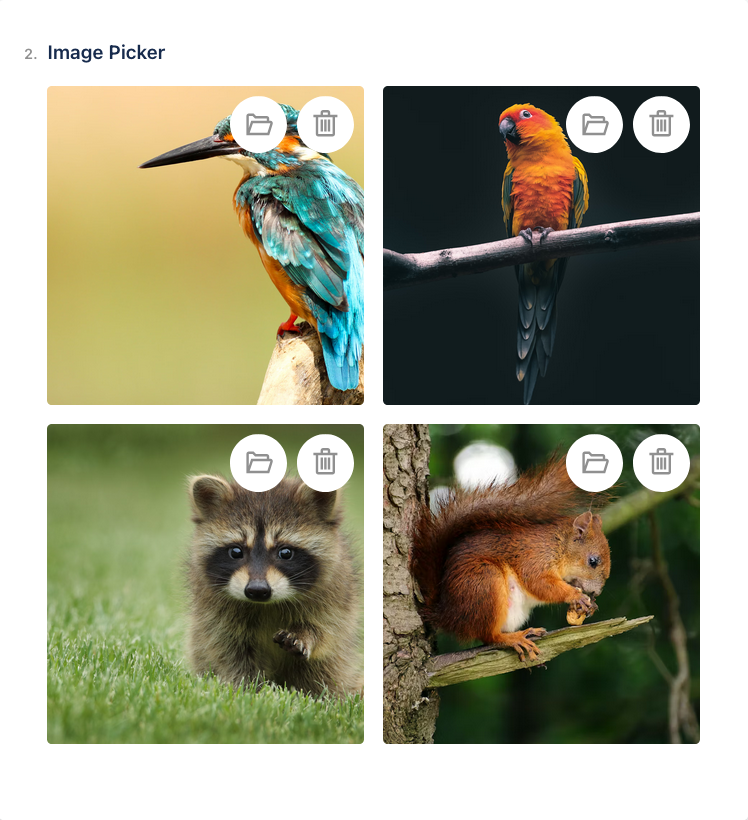
When configuring an image picker in your survey, you have the following options for image sources:
Upload an image from you local filesystem.
In case of large images, this can lead your survey definition to exceed the Atlassian forge storage limits. To circumvent this, you can upload the respective image as an attachment of the page, and reference the attachment instead.
Insert a new image picker and click on the plus icon to upload an image from your local filesystem.
Use an image link
Insert a new image picker and configure the images in the “Choice Options” Section in the properties panel on the right. The “Choice Options” are only available in the “Expert mode”.
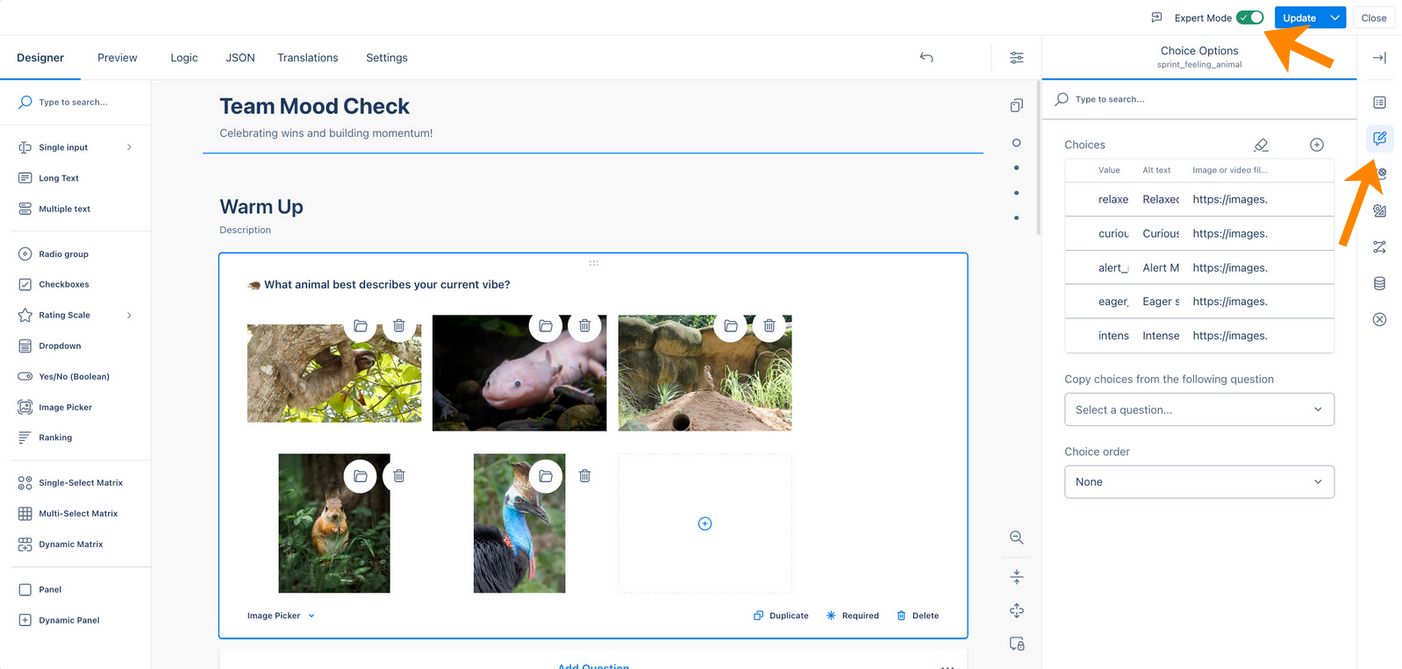
Links from the following sources are allowed:
-
<your-confluence-hostname>.atlassian.net -
secure.gravatar.com -
images.unsplash.com -
api.media.atlassian.com -
api.atlassian.com
This includes Confluence attachments. To link a Confluence attachment
-
upload or use an already existing Confluence attachment
-
open the page details by clicking on “show details” in the action bar in the lower right corner of the page.
-
navigate to the files of the page in the “Connections” section of the details
-
right click and copy the link of the attachment you want to reference and insert it in your survey.
Make sure that all survey participants have view rights for the Confluence page containing the attachment, otherwise they will not be able to see the attachment in the survey.
We experienced limitations on Firefox in combination with certain authentications (SSO). Users might not be able to see images, despite having access on the attachment.