
Auto-migration updates your legacy Survey and Multivote macros when you update a page. Migration occurs gradually as pages update, not during the migration run. To migrate all macros immediately after migration, use the Macro Migration Assistant. Auto-migration eliminates this manual step.
Prerequisites
-
Automatic macro Migration on page update only works across pages for which the Multivote & Enterprise Survey for Confluence app user has the appropriate space level and page level permissions. By default, our app user has the necessary permissions. Learn how to supply the app user with the necessary permissions.
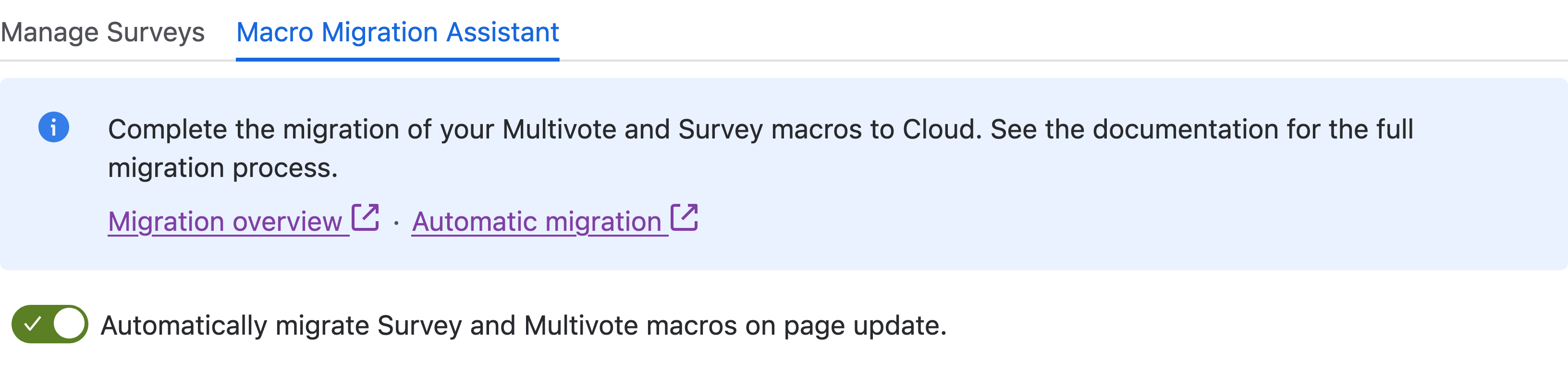
Please keep in mind, that the auto-migration is enabled by default. It can be disabled by admins on the macro assistant page (navigate to ⚙️ -> Settings → Apps → Multivote & Enterprise Survey → Macro Migration Assistant).
How it works
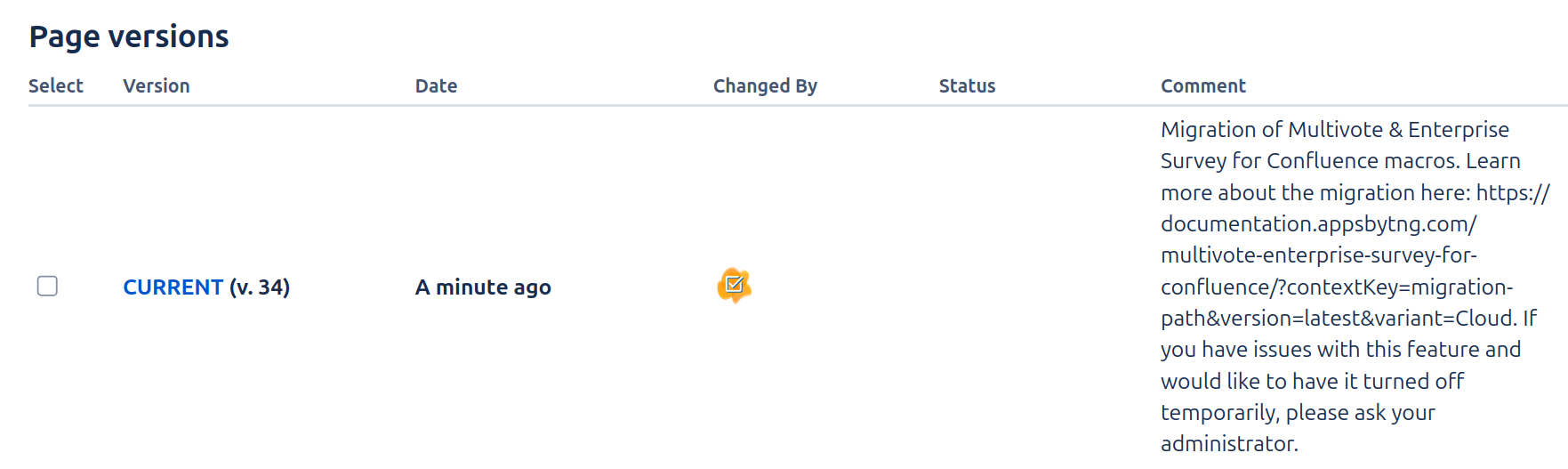
With the setting enabled, any update of a Confluence page will trigger an automatic migration of all Surveys and Multivotes located on that page. The Macro Migration Assistant will scan the page for legacy macros and automatically issue a secondary page update to migrate them. This secondary page update is issued by the Multivote & Enterprise Survey for Confluence app user and will show up in the page history accordingly.
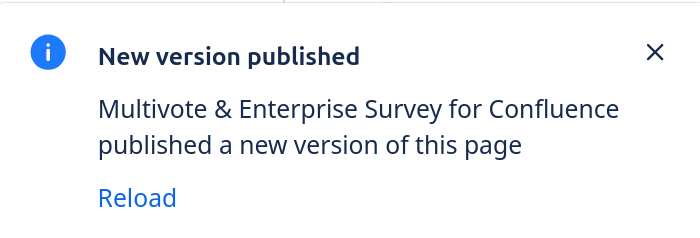
Confluence will notify you that a new version of the page has been published once the secondary page update has been completed.
Troubleshooting
Please visit our troubleshooting page to learn about potential problems which might occur during macro migration.