
Please install the latest version of our app on your DC and Cloud sites for a seamless migration.
0. Prerequisites
Since we continue to improve Multivote & Enterprise Survey for Confluence as well as its app migration path, we recommend to upgrade the app on Data Center and on Cloud to its latest version before attempting a migration.
We recommend to activate logging of Multivote & Enterprise Survey for the duration of the migration. Logging can be activated at
⚙️ → General Configuration → Logging and Profiling
There in the “Add New Entry” section add an entry for “Class/Package Name” com.tngtech and “New Level” INFO or WARN depending on how detailed the logs should be. Click first “Add entry” and then the “Save” button at the bottom of the page.
You may deactivate logging for com.tngtech after the migration is concluded.
1. Migration of spaces/apps, starting from DC/server
1.1 Assess your apps
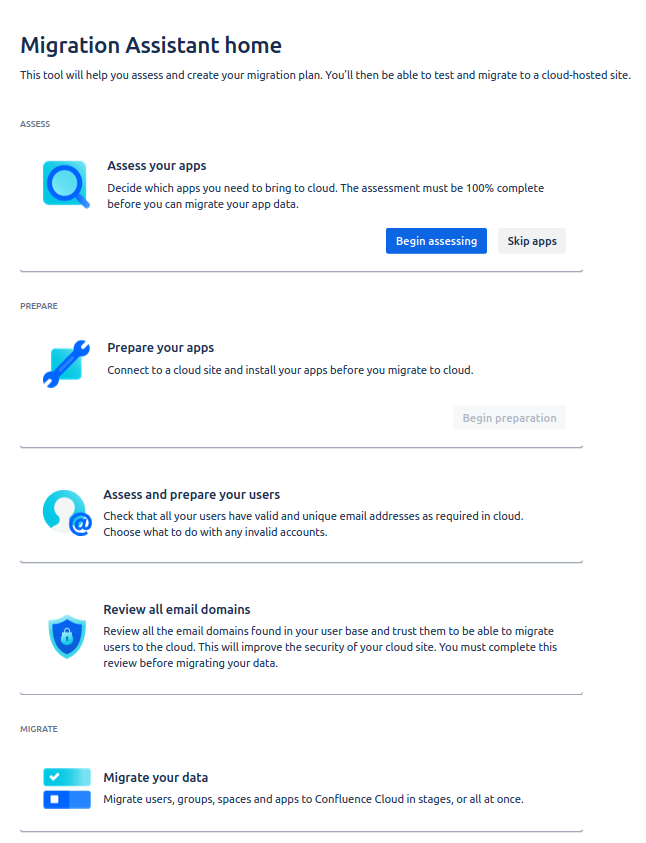
First select the Atlassian Cloud Migration Assistant and begin assessing your apps:
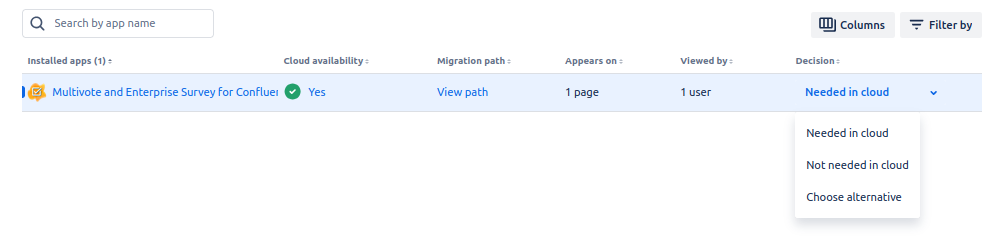
Next, select that you will need Multivote and Enterprise Survey for Confluence in the cloud, click Done.
1.2 Assess your apps
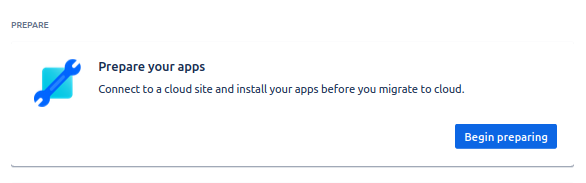
Then it is time to prepare your apps.
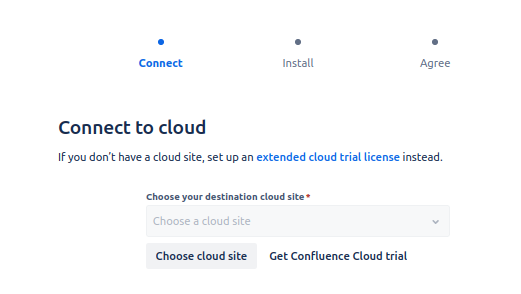
You will need to connect to your cloud site and will have to install Multivote & Enterprise Survey for Confluence on it (if you haven’t already 😉 )
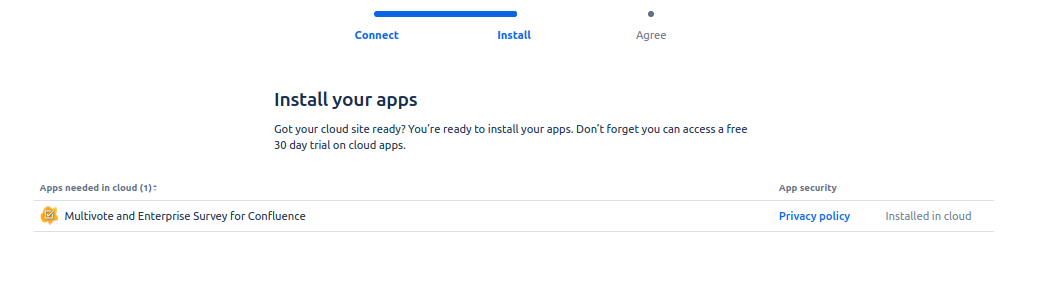
Finally, agree to the app migration and click on ‘Done’.
1.3 Review your email domains/Assess and prepare your users
Before you can start a migration, you have to review your email domains and assets and prepare your users. Please follow the Atlassian documentation here.
1.4 Migrate your data
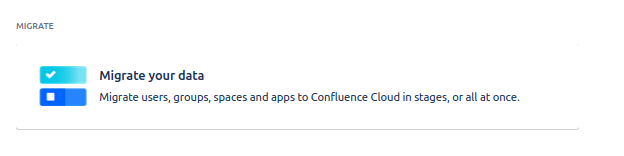
Finally, click on ‘Migrate your data’ to start a new migration:
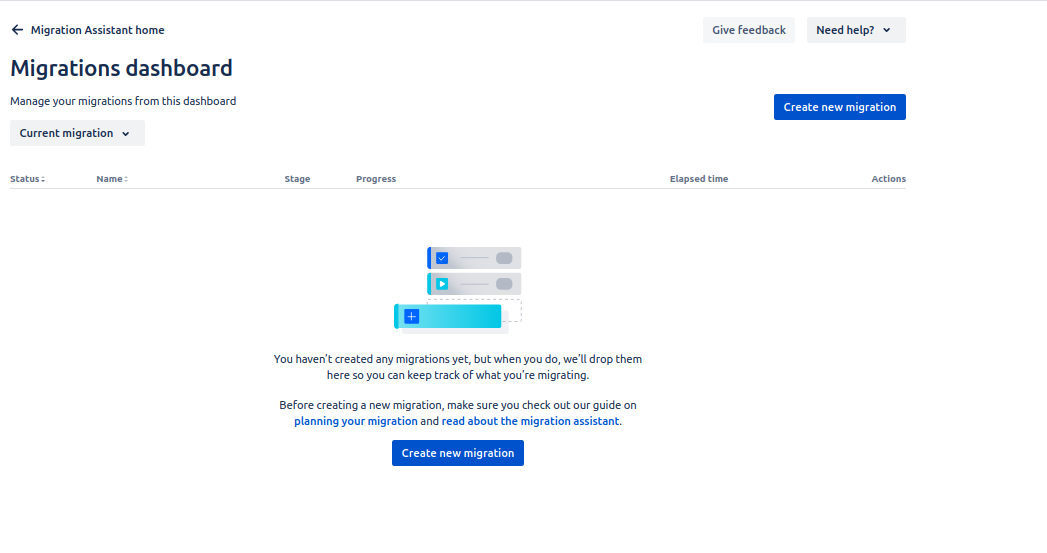
This leads you to the migration dashboard. Click on ‘Create new migration’.
This will guide you through the different steps, as shown below.
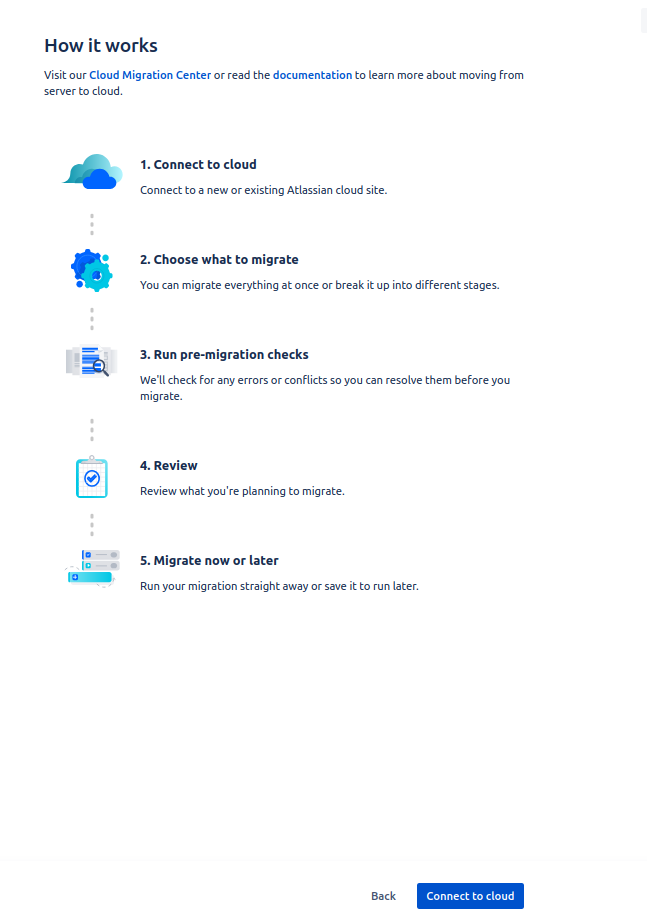
Click on ‘choose what to migrate’. Here you can choose your migration options, such as global templates, spaces, users and groups as well as apps, including the Multivote & Enterprise Survey for Confluence.
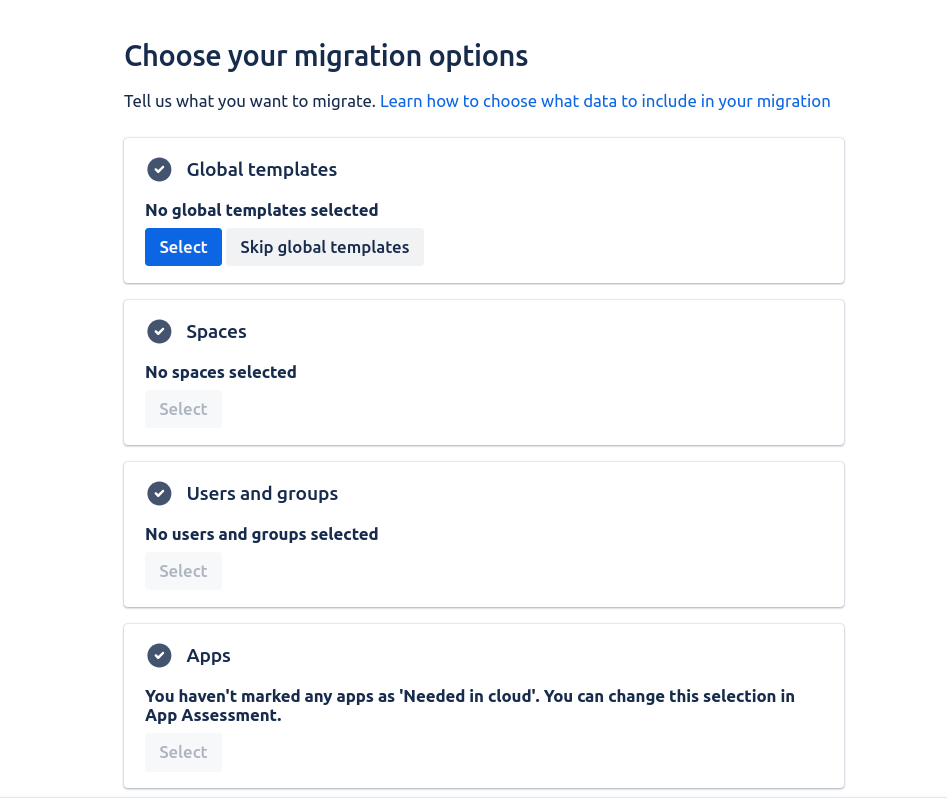
Finally, you can then hit the button ‘Check for errors’. This will trigger Atlassian’s pre-migration checks. At this stage, there is also a pre-migration check specific to Multivote & Enterprise Survey for Confluence. It checks whether your Surveys obey the size limitations of the Atlassian Cloud.
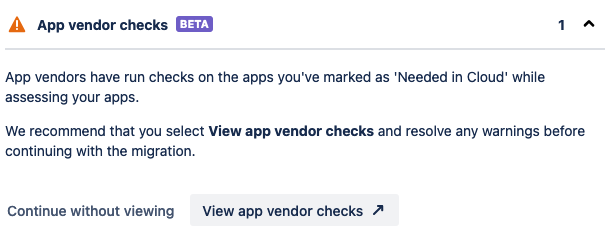
This pre-migration check is non-blocking. You can continue your migration despite warnings, but doubtful Surveys will not be migrated. You can click on ‘View app vendor checks’ and download a report about this check. The report is a CSV file containing the problematic Survey Title, Survey Id, and Survey Size.
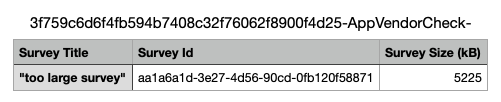
Find out more on how to resolve problems with too large Surveys on our troubleshooting page. After correcting potential errors, you can review your migration clicking on ‘Review Migration’ and then start it by clicking on ‘Run now’.
It may be that Multivote & Enterprise Survey for Confluence is listed in the success rate check with a warning:
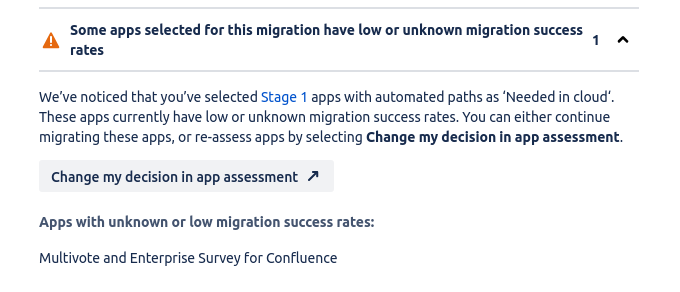
You can ignore this warning, as our migration assistant for Survey was only recently introduced and therefore has an unknown success rate.
The migration will then appear in your dashboard.
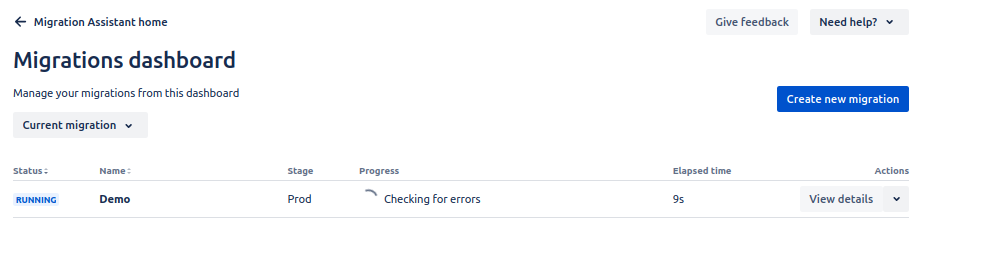
By clicking on ‘View details’, you can follow its progress.
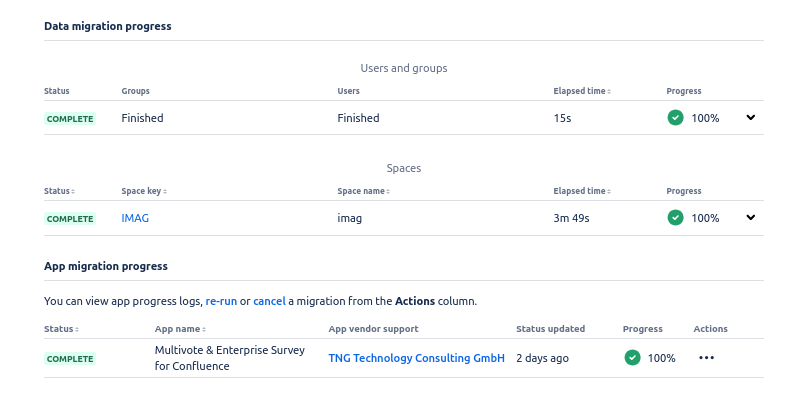
Please note that if the app data migration takes longer than 15 minutes, its status will be displayed as TIMED_OUT. The data migration will still continue though. Please check the migration progress logs.
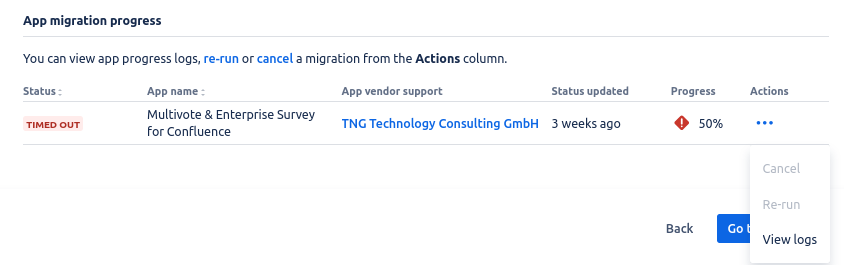
The last log message should contain “App migration settled by Cloud app with status SUCCESS, percent 100 and message : All events processed successfully for transferId: ”.
1.5 Checking the log files of the Data Center instance
Even if the app migration completed with a success, it can make sense to have a look in the log files of the Data Center instance. You can check the log files for the search string Problem during Multivote & Enterprise Survey app migration:. Messages with this string usually indicate a malformed Multivote macro on a specific Confluence page that was skipped during migration. The log message gives you a page ID that you can use for further investigation.
For more details, please consult the migration troubleshooting page.
2. Migrating legacy macros to cloud macros
By default, auto-migration is enabled which makes the manual work of this step obsolete. Find out more at Auto-migration of macros. If you want to migrate all macros at once, follow the steps bellow.
Now the macros have to be migrated in Cloud. The Macro Migration Assistant page contains a handy overview to see all migrated or yet-to-be migrated pages.
You can find it by navigating to ⚙️ → Settings → Apps → Multivote & Enterprise Survey → Macro Migration Assistant:
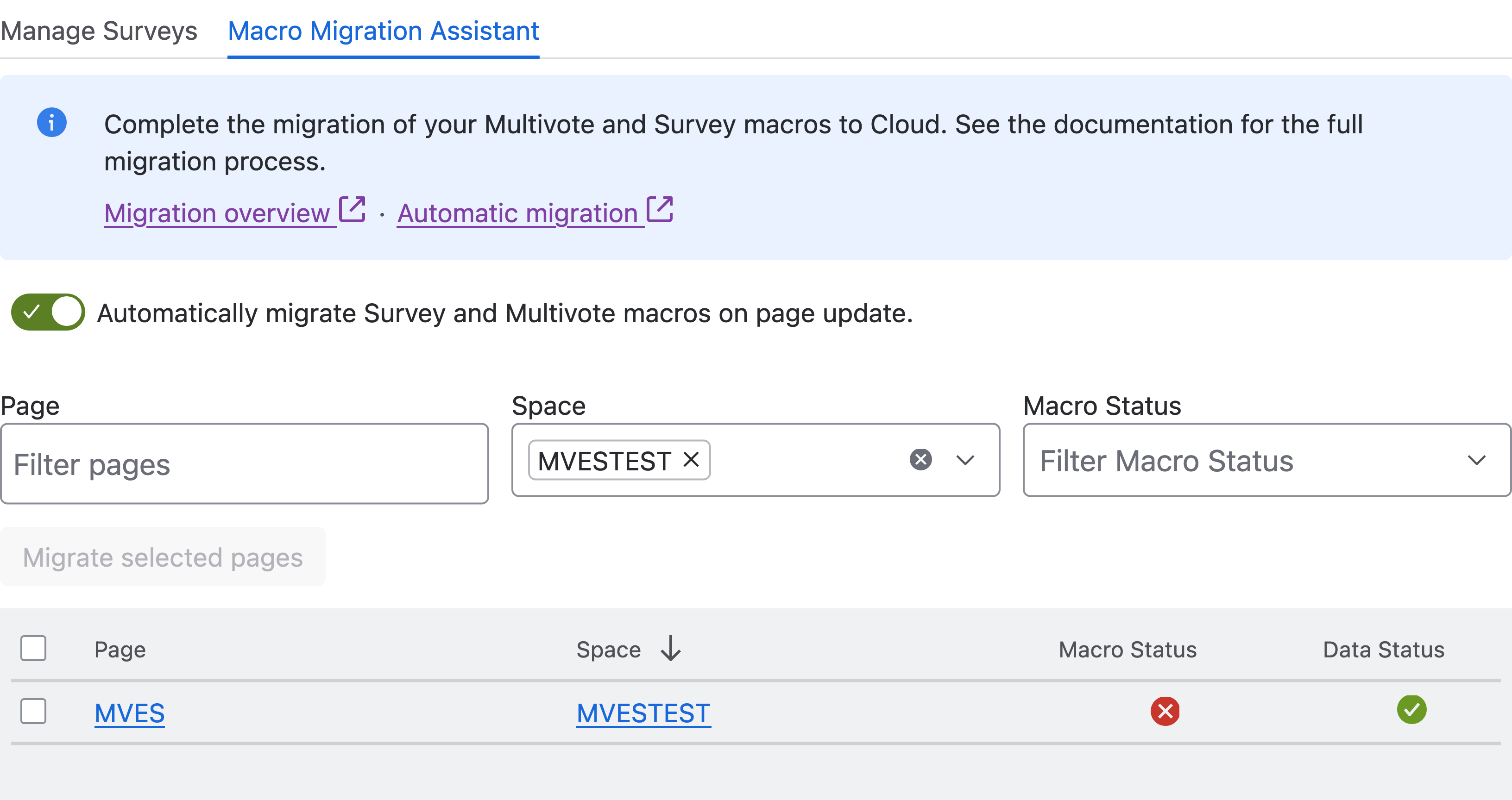
Select the pages you want to migrate and click ‘Migrate selected pages’.
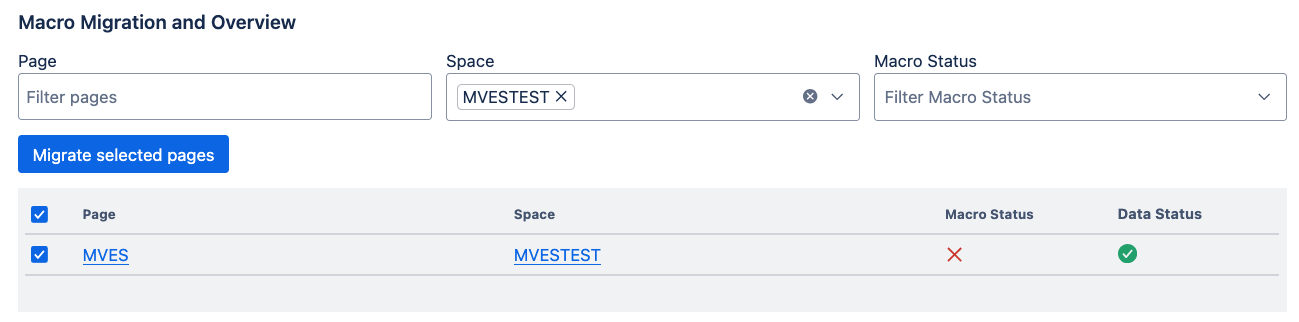
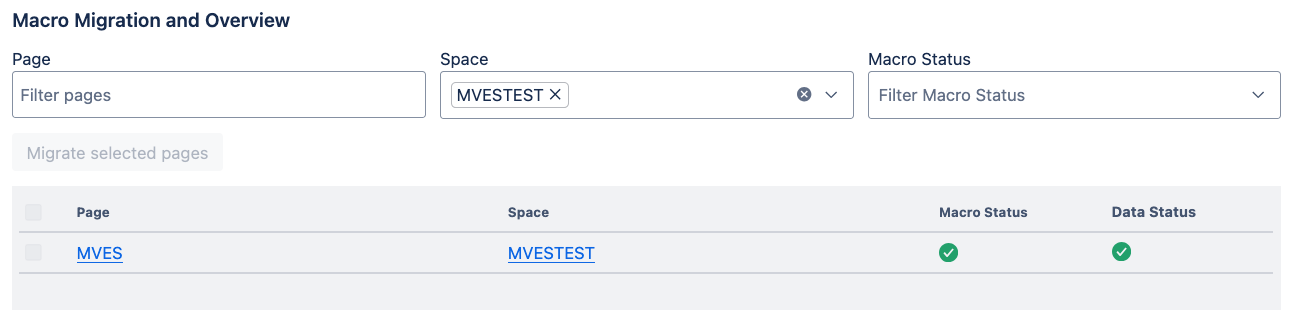
After a short moment, you should see a success.
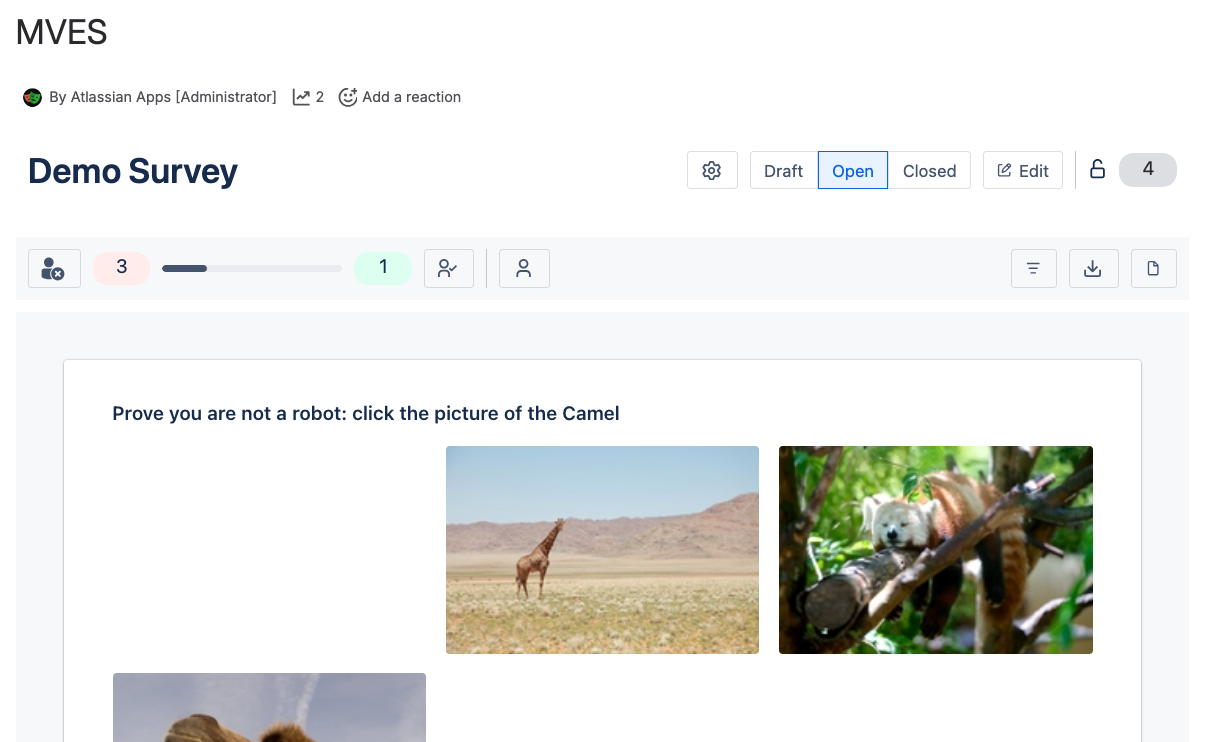
Navigating to the survey page will now show you the Survey with its data.
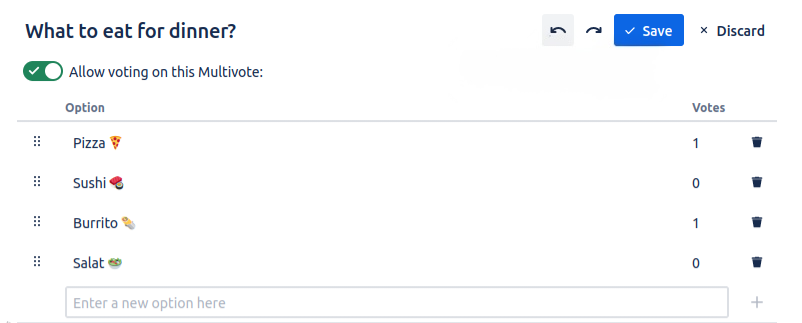
Navigating to the multivote page will now show you the Multivote with its data.
If you Survey or Multivote data is not migrated you will see this
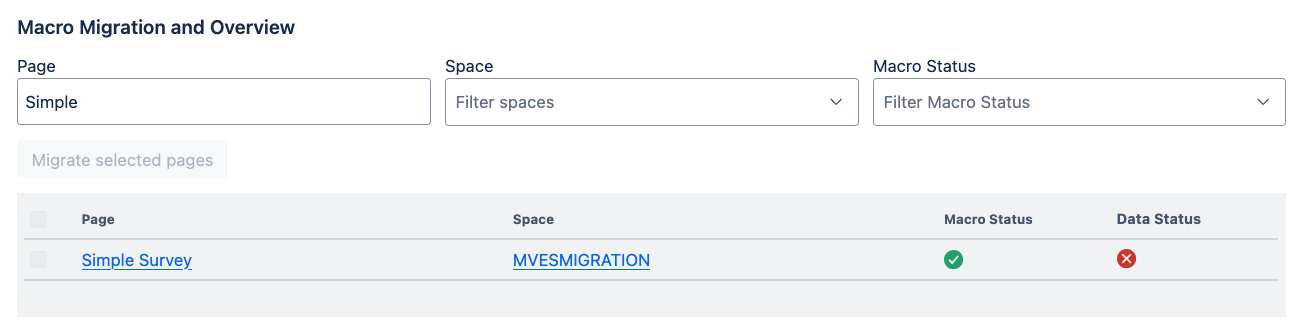
For possible reasons, please consult the migration troubleshooting page.